Two shoppers, one bag
Picture a leather tote in four colours: Black, Tan, Sage and Burgundy. Burgundy costs a little more because the leather does. Two people want it on the same evening, both on their phones.
The first shopper finds it on Amazon
Under the title is a row of small photos, one per colour, each with its price underneath. They tap Sage, and the big photo turns sage. Burgundy shows its higher price before they touch it. Black is crossed out, because it sold out this morning. They pick Sage, choose a size, and it is in the basket in about ten seconds. Nobody had to explain anything.
The second shopper finds it on your store
Under the title is a box that says Choose an option. They tap it, and a picker covers half the screen with four words. Which green is Sage? They guess, close the picker, open the size box, choose Medium. The photo changes and so does the price, now that both are chosen. Then the message appears: Out of stock. They try Tan instead. It works, but it isn’t the colour they wanted, and the price is different from the one they saw on the shop page.
Same bag, same price, same stock. One store showed the shopper what they were choosing; the other made them find out. The second store hasn’t done anything wrong. It is running WooCommerce the way WooCommerce works out of the box.
Why WooCommerce works like this
WooCommerce stores each colour-and-size combination as a variation with its own photo, price and stock. Its product page asks for one attribute at a time with dropdown menus, and only once every attribute is chosen does it know which variation the shopper means. That is when the photo, price and stock finally appear.
Two more things make it worse on real catalogues. Shop pages show a “Select options” button instead of colours, so choosing means opening the product and coming back. And once a product has more than 30 variations, WooCommerce stops sending variation data to the page at all, so even marking sold-out options gets hard. Why the 30-variation limit breaks out-of-stock marking →
What Amazon-style swatches actually need
“Swatches” covers a lot of plugins that only swap dropdowns for coloured dots. To work the way shoppers expect, a variation picker needs all six of these:
- A photo for every option. Not a coloured dot or the word “Sage”: the actual bag in that colour, taken from the variation’s own image so nobody has to upload it twice.
- A price under every option. When colours cost different amounts, the shopper should see it before choosing, not after. And the price should follow what is already picked.
- The main photo follows. Pointing at an option shows it in the big product image. Choosing one keeps it there.
- Sold-out options marked. Crossed out before the shopper chooses, so “Out of stock” never arrives as a surprise at the end.
- The same on the shop page. Swatches on the product card, with the card’s photo and price following the choice, and add to cart without opening the product.
- Works on big products. A product with six colours and eight sizes already has 48 variations. Past 30, WooCommerce stops sending variation data to the page, and many plugins quietly stop marking stock.
Most swatch plugins cover the first and fourth. The rest is where free and Pro split, and the second item, a price under each option, is the one almost nobody lists at all.
Variation swatches plugins compared: free vs Pro
The roundups that rank for “best variation swatches plugin” mostly compare swatch shapes and tooltip styles. This table compares the six items above instead, across the largest swatch plugins on WordPress.org. Each cell comes from that plugin’s own listing, not from a roundup, because the roundups don’t always agree with the listings.
| Feature | KABAA | GetWooPlugins | CartFlows | WCBoost | VillaTheme | RadiusTheme | ThemeHigh |
|---|---|---|---|---|---|---|---|
| Image swatches from the variation photos | Free | Free | Free | Pro | Free | — | — |
| Price under each option | Free | — | — | — | — | — | — |
| Main photo changes after the first choice | Free | Pro | — | — | Pro | — | — |
| Out-of-stock options marked | Free | Free | Free | Free | Pro | Free | Free |
| Swatches on shop and category pages | Free | Pro | Free | Pro | Pro | Pro | Pro |
| Add to cart from the shop page | Free | — | — | Pro | Pro | Pro | — |
| Out-of-stock marking above 30 variations | Free | Pro | Raises limit | — | — | — | Raises limit |
| Swatches for attributes made inside a product | Free | Pro | — | — | — | Pro | — |
| Pro version | None | Yes | None | Yes | Yes | Yes | Yes |
From each plugin’s own WordPress.org listing, checked October 2026. — means the listing does not mention the feature. “Raises limit” means it handles big products by raising WooCommerce’s 30-variation limit, which makes those pages heavier.
Two things the table shows:
- Shop page swatches are the most common Pro feature. Five of the six plugins list them under Pro. CartFlows is the exception, and it is free throughout.
- No listing mentions a price under each option. One swatch-plugin vendor states plainly in its support forum that displaying price is not a feature of its plugin, but of WooCommerce itself.
For how each plugin handles out-of-stock options on bigger products, see the full out-of-stock comparison.
How KABAA Swatches does it, free
I built KABAA Swatches because the Amazon pattern shouldn’t be a paid add-on for a store that already has its photos and prices. It has no Pro version, no licence key and no locked settings. Here is the same tote with it installed.
Tile swatches: a photo and a price for every option
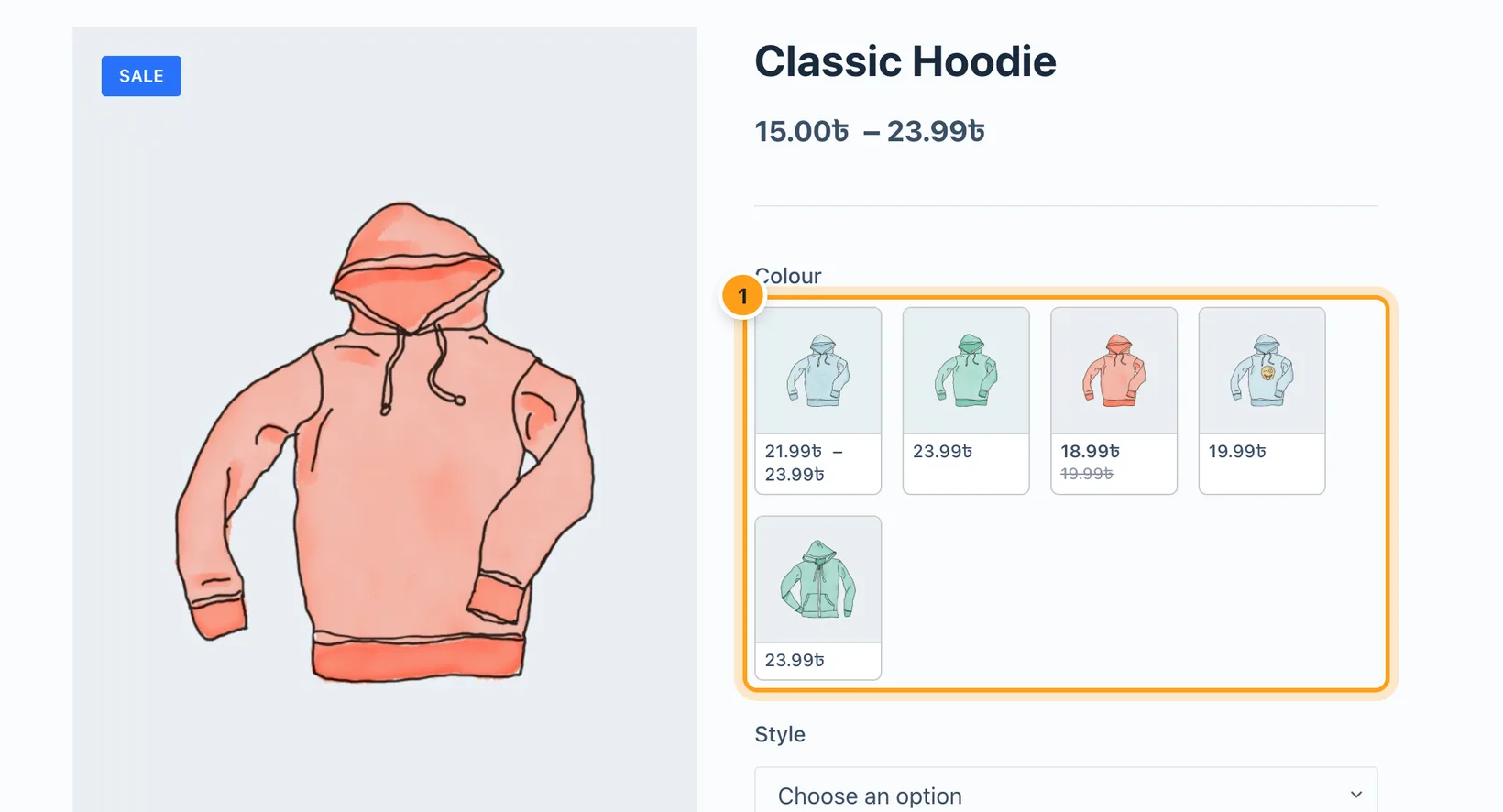
A tile shows the photo of the first variation with that option and, under it, the price of the variations it can still lead to. While another option still changes the price, the tile shows a range, which narrows to one price as the shopper chooses. Sale prices show the regular price struck through. The photos come from the variations, so nothing has to be uploaded twice.
The main photo follows
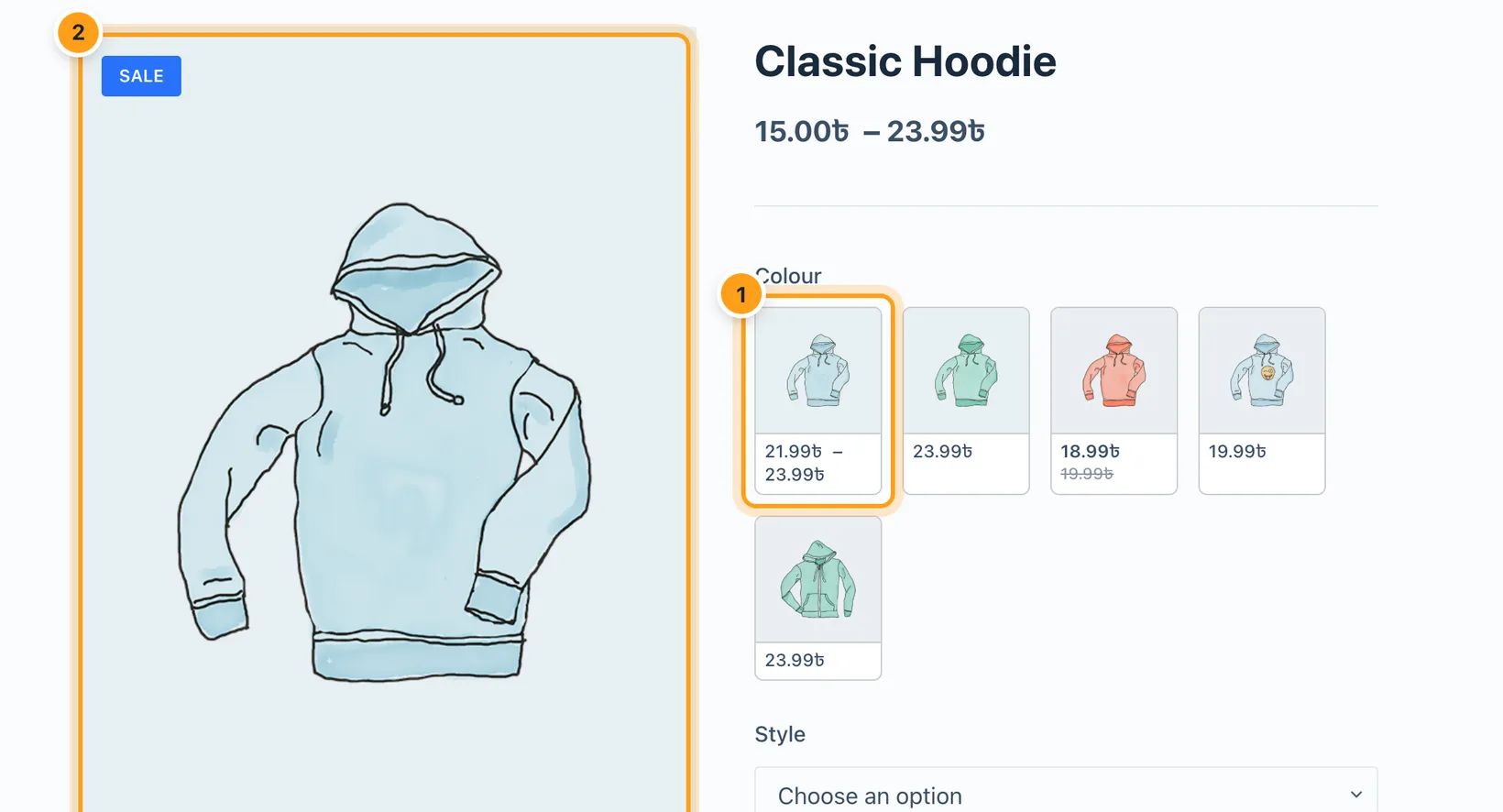
Pointing at a tile, or tabbing to it with the keyboard, shows its photo in the main product image. Moving away puts the previous photo back, and a chosen tile keeps its photo. On a phone there is no hover, so a tap chooses the tile.
Sold-out options marked, on products of any size
Options with nothing in stock alongside the current choice are crossed out, blurred or hidden, before the shopper picks them. That includes products past WooCommerce’s 30-variation limit, without raising the limit: KABAA asks the server only about the swatches on screen.
The same on the shop page, with add to cart
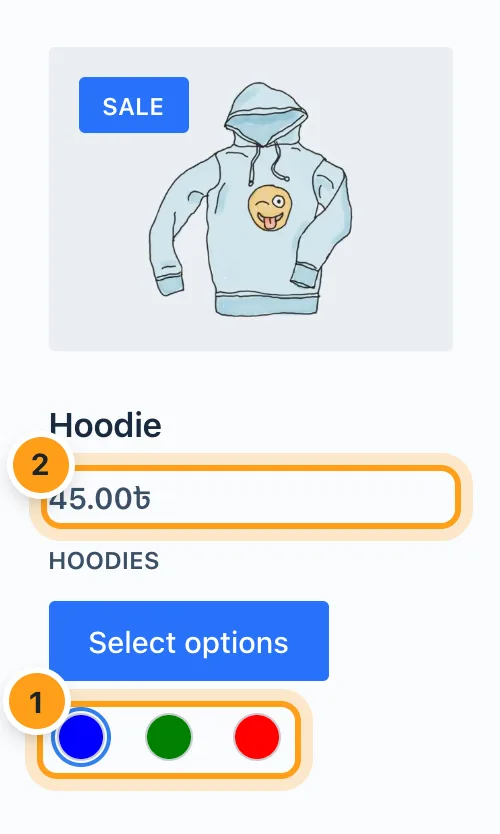
Swatches show on shop, category, tag and search pages. Choosing one changes the card’s photo to that variation and narrows its price. When the card shows every attribute the product varies by, its button becomes Add to cart and adds the chosen variation without leaving the page. Shop cards never call back to the server just to show swatches, so they keep working on pages served from a full-page cache.
Set up Amazon-style swatches in four steps
-
Install KABAA Swatches
Plugins › Add New, search for KABAA Swatches, install and activate. Nothing on your store changes yet.
-
Set the colour attribute to Tile
Under Swatches › Attributes, set the attribute whose options look different, usually Colour, to Tile (photo and price). Set sizes to Button.
-
Give the variations their photos
In the product’s Variations tab, each variation needs its featured image, which most stores already have. No image per term is needed.
-
Check the shop page
Swatches › Settings › Shop page controls which attributes cards show. Show every attribute and the card’s button becomes Add to cart.
Every setting, with a screenshot, is in the tile swatches documentation.
What it doesn’t do
- Classic themes only. It works with themes that use WooCommerce’s standard variation form, which most classic themes do. Block themes are not supported.
- No price under shop-card swatches. On product cards a tile shows as an image swatch, and the card’s own price follows the choice instead. Cards are too small for a price under every option.
- It doesn’t restyle your gallery. The hover preview uses WooCommerce’s own variation image functions, which most theme galleries follow. A theme whose gallery ignores them shows tiles and prices without the preview.
Frequently asked questions
How do I show variation images as swatches in WooCommerce?
WooCommerce shows variations as dropdowns only, so you need a swatch plugin. Choose one that builds image swatches from the variation photos you already have, rather than asking for an image on every attribute term. In KABAA Swatches that is the Tile type, which is free, and so is the Image type with variation images as its fallback.
Can WooCommerce show the price under each variation swatch?
Not by default: WooCommerce shows one variation price, after every option has been chosen. Most swatch plugins do not list a price per swatch either. KABAA Swatches’ Tile type shows each option’s photo with its price under it, and the price narrows as other options are chosen.
How do I show color variations on the WooCommerce shop page?
Use a swatch plugin with shop page swatches. In several of the largest plugins this is a Pro feature. In KABAA Swatches it is free: swatches show on shop, category, tag and search pages, the card’s photo and price follow the choice, and the card can add the variation to the cart.
What is the best free variation swatches plugin for WooCommerce?
It depends on what you need for free. CartFlows’ plugin is free and includes shop page swatches. KABAA Swatches is free with no Pro version and adds a photo and price per option, add to cart from the shop page, custom attribute swatches and out-of-stock marking past 30 variations. Compare the free column of each plugin’s WordPress.org listing against your products.
Do Amazon-style swatches work with any WordPress theme?
They work with classic themes that use WooCommerce’s standard variation form, which most do. A theme that prints its own variation form keeps its dropdowns, and the product stays buyable. KABAA Swatches does not support block themes.
Will swatches slow my store down?
They shouldn’t. KABAA Swatches loads its script and styles only on pages that show swatches, reads what a page needs in one batched lookup, and shop cards never call back to the server just to show swatches.