
KABAA Swatches
Variation swatches for WooCommerce, done properly.
Replace WooCommerce’s variation dropdowns with colour, image and button swatches shoppers can see and tap — on the product page and right on the shop card. Sold-out options stay marked on every product, however many variations it has.
Dropdowns out, swatches in.

The three places WooCommerce variations let shoppers down.
A dropdown hides the thing being chosen
A shopper reads the word “Ocean Blue” instead of seeing it, and on a phone the dropdown opens a picker that covers the page.
Sold-out marking breaks on big products
WooCommerce stops sending variation data to the page above 30 variations. Swatch plugins that rely on that data stop marking sold-out options there.
Shop pages make the shopper click through
Every product card says “Select options”, so choosing a colour means opening the product, choosing, and coming back.
Everything is in the free plugin.
Colour, image and button swatches
Pick a type per attribute. Colours for finishes, pictures for patterns, buttons for sizes.
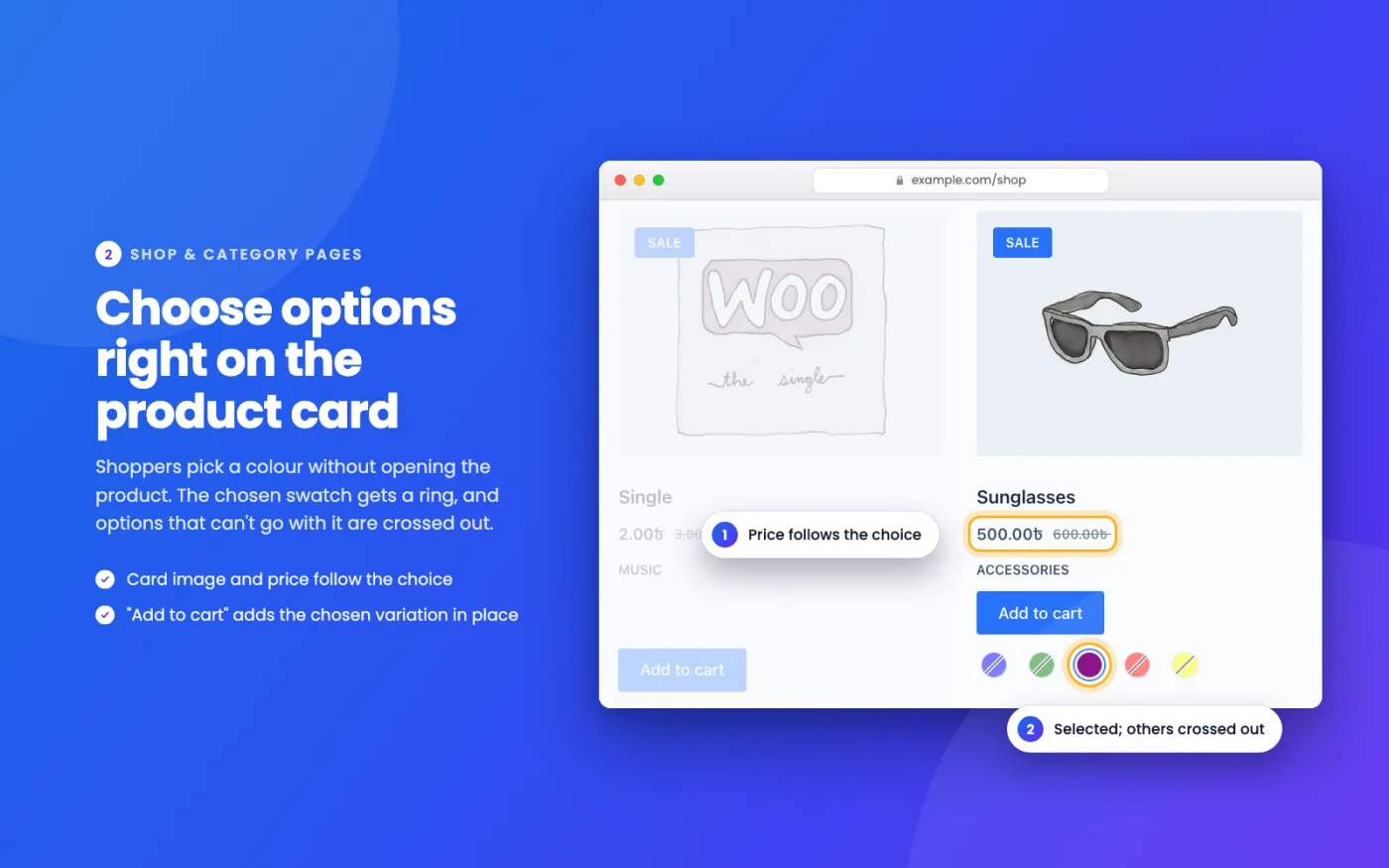
Swatches on shop cards
Shop, category, tag and search pages, shortcodes and related products. Pick options right on the card.
Add to cart from the card
When the card shows every option, its button adds the chosen variation in place, on products of any size.
Image and price follow the choice
The card photo switches to the chosen variation, and the price narrows to what the choice can cost.
Sold-out marking on any product
Options with nothing in stock alongside the current choice are crossed out, blurred or hidden, past 30 variations too.
Independent of catalog visibility
Works whether or not “Hide out of stock items from the catalog” is on, so sold-out products can stay browsable.
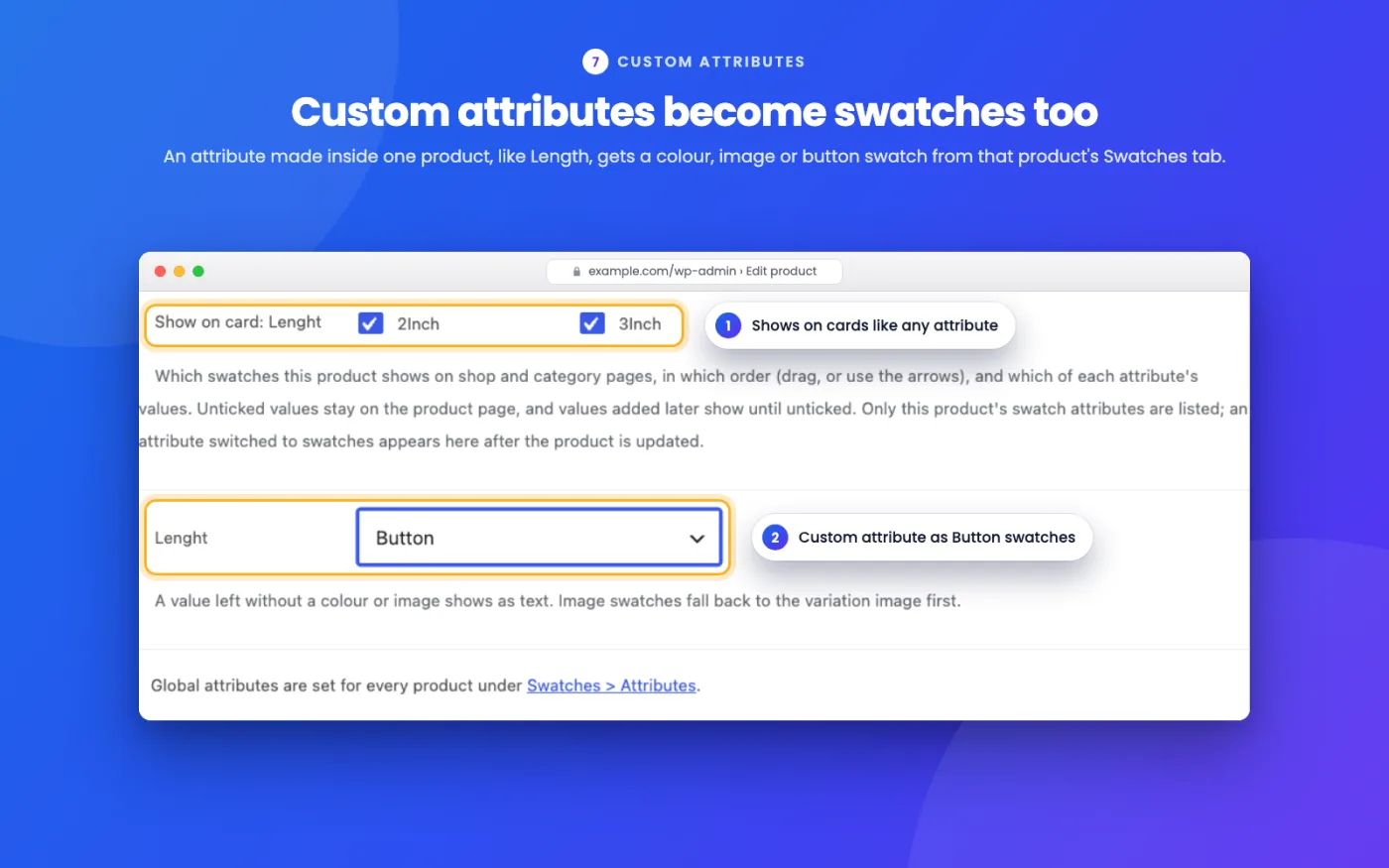
Custom attributes, too
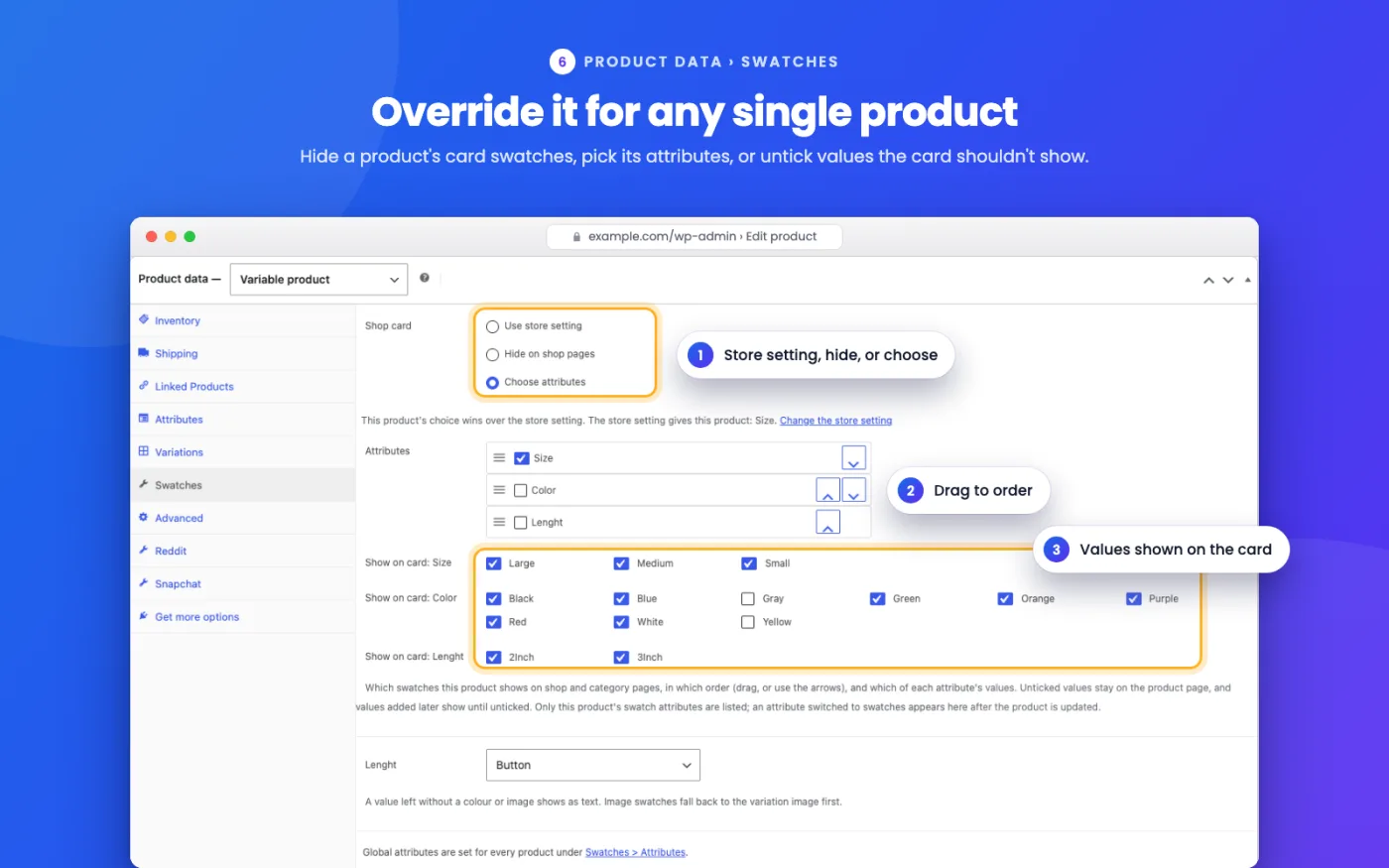
Attributes typed into one product get swatches from that product’s own Swatches tab.
Colour from the name
Name a term Navy or Tomato and its swatch colour fills itself, from the 148 colours every browser knows.
Variation images as a fallback
An image swatch without its own picture uses the featured image of a variation with that option.
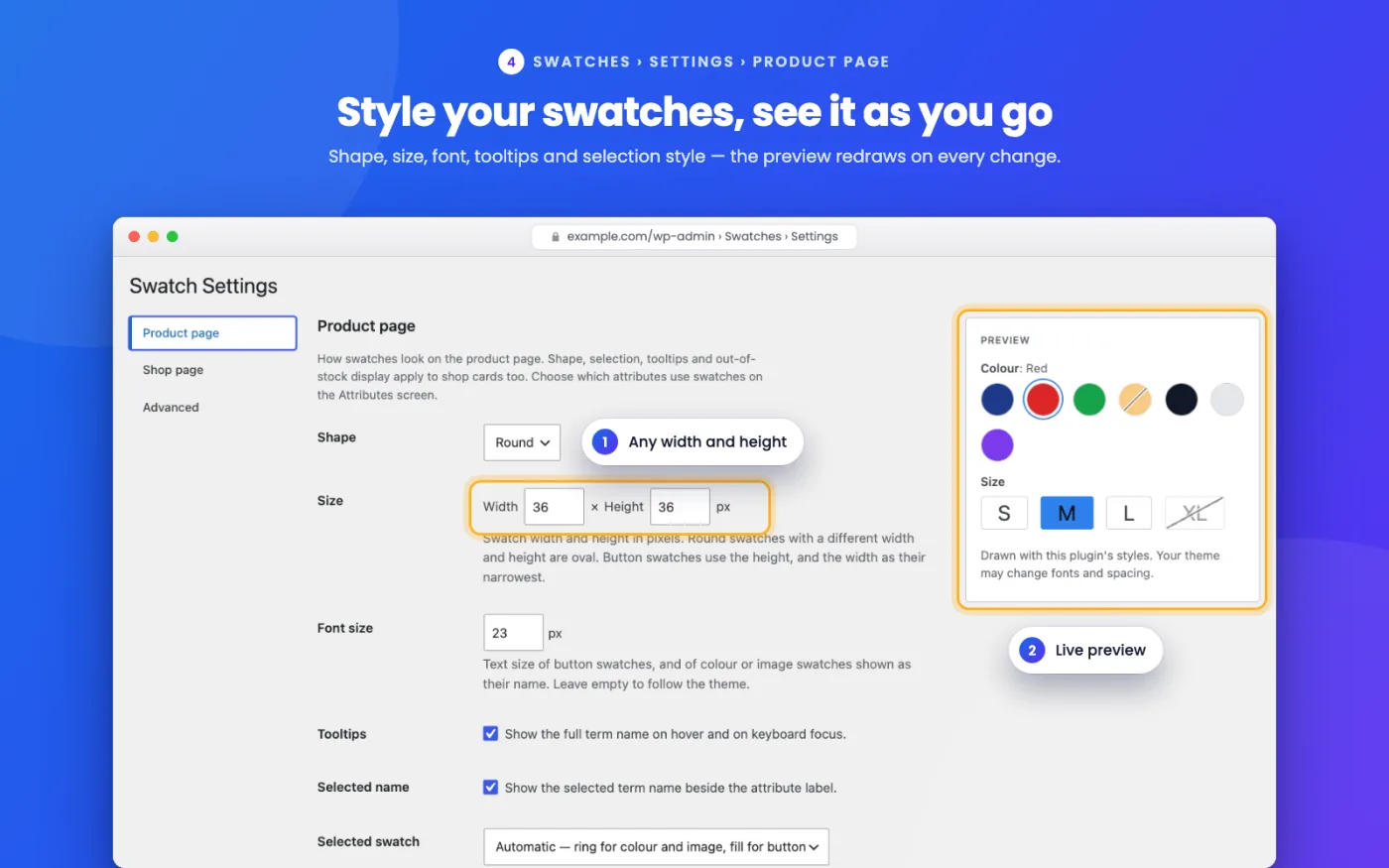
Shape, size and selection
Round or square, any width and height. The chosen swatch gets a ring outside it, so it shows on a black swatch.
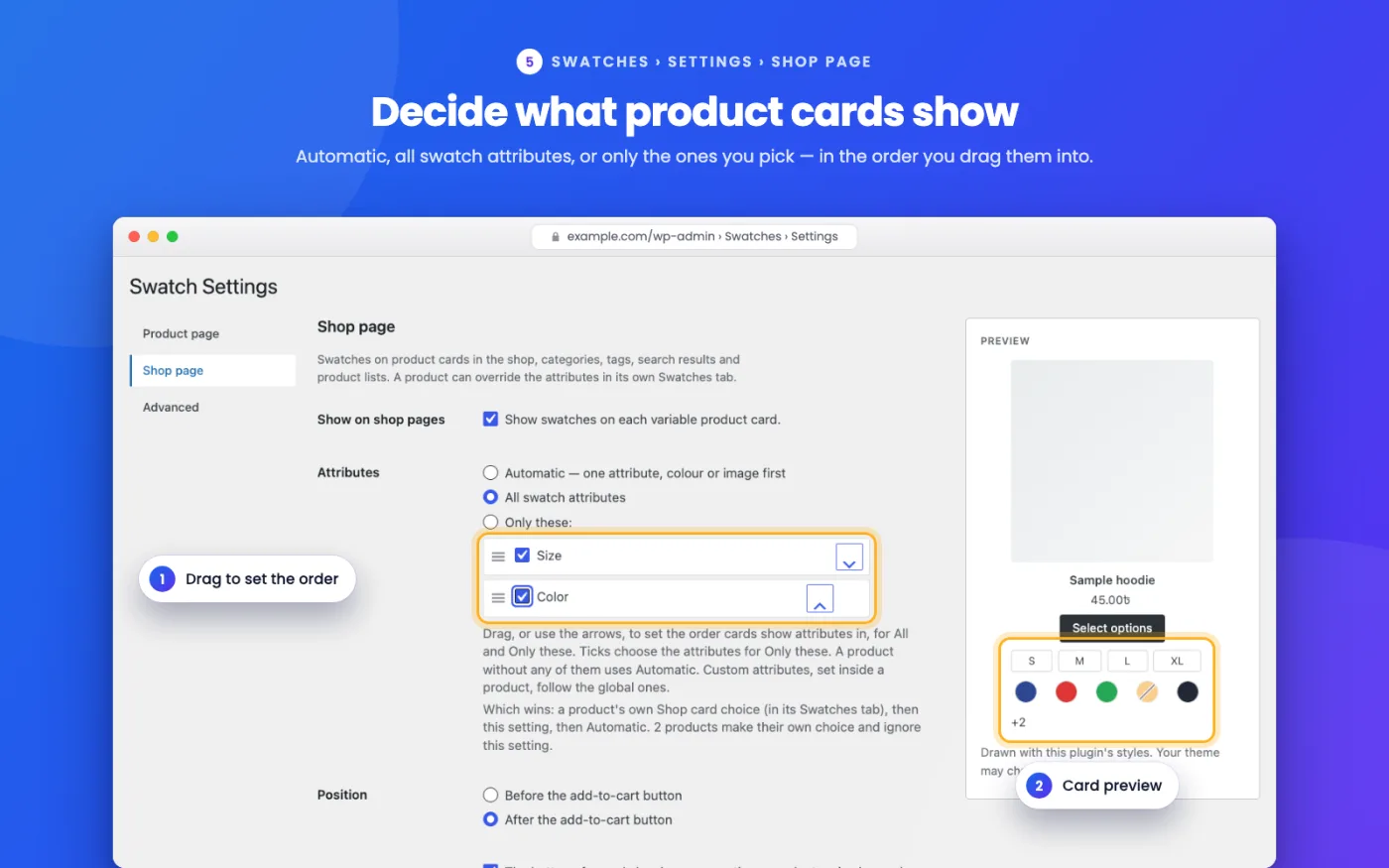
Choose what cards show
Which attributes, in what order, which values, spacing and alignment — store-wide or per product.
Accessible by construction
Real radio inputs: keyboard, focus and screen-reader state come from the browser. Tooltips on hover and focus.
Live preview in settings
A sample row and a sample shop card update as you change the settings, before you save.
Stays out of the way
No template overrides, assets only on pages that show swatches, settings in one option row.
Clean to remove
Deleting it removes only what it created. Your attributes, terms, products and media are never touched.
On the storefront and in the admin.

Add swatches to WooCommerce in four steps.
-
Install the plugin
In your WordPress admin go to Plugins › Add New, search for KABAA Swatches, then click Install Now and Activate. Or download it from WordPress.org ↗.
-
Choose a swatch type for an attribute
Open Swatches › Attributes and set each attribute to Colour, Image or Button. Nothing on your store changes until you do.
-
Give the terms their colours or images
Swatches › Terms links straight to each attribute’s terms. Buttons need nothing; colours fill themselves from names like Navy.
-
Adjust the look
Swatches › Settings sets shape, size, selection style and the shop card rows, with a live preview beside the form.
Needs WordPress 6.0+, WooCommerce 8.0+ and PHP 8.0+, with a classic theme that uses WooCommerce’s standard variation form. Every setting is explained in the documentation.
The engineering behind a swatch.
A swatch plugin runs on every product page and every shop grid of a store, so the rules were written before the features: no query per variation, no script where no swatch is shown, and WooCommerce stays in charge of the cart.
- ProductVariationsstock and attributes
- Built onceAvailability indexone batched read, cached
- ≤ 30In the pageWooCommerce’s own data, no request
- > 30Small requestsized to swatches on screen
Correct past the 30-variation limit
WooCommerce sends variation data to the page only up to 30 variations, then switches to looking variations up one complete choice at a time. Plugins that read that page data stop marking sold-out options above it. KABAA keeps a cached index of which options can still be bought, and asks it only about the swatches on screen, so a product with hundreds of variations costs the same request as one with forty. How to grey out out-of-stock variations in WooCommerce →
Cost grows with what is shown, not with the catalogue
Term colours, images and availability for a whole page are read in one batched call before anything renders. A shop grid of 24 variable products does not become 24 sets of queries, and the script and styles load only on pages that actually show a swatch.
WooCommerce stays in charge
The original select stays in the form, hidden, and remains what WooCommerce reads. Swatches write to it and listen to it, so add to cart, variation lookup and other plugins that hook the form keep working. No template is overridden: a theme that prints its own form simply keeps its dropdowns.
Accessible because it is made of real controls
Each swatch is a real radio input with a label, so arrow keys, focus and the screen-reader “selected” state come from the browser. The selection ring sits outside the swatch, so it reads on black and white swatches alike, and keyboard focus is drawn differently from selection.
Tile swatches: photo and price.
A larger swatch for the options that change both the look and the price — the way big stores show colours. In development now, and free like everything else.
- Each option’s own variation photo, with its price underneath
- The price follows the options already chosen — a range until it narrows
- Hover a tile to preview its photo in the product gallery
- Works on products with more than 30 variations, like everything else here
Guides for WooCommerce variations.
Fixes for the problems store owners hit with variable products, with or without the plugin. All posts →
10 Best WooCommerce Variation Swatches Plugins (2026)
Ten swatch plugins compared on what you get without paying: shop page swatches, out-of-stock marking, photo and price swatches, and products past 30 variations. Every claim from the plugin’s own listing.
Amazon-Style Variation Swatches for WooCommerce, Free
Two shoppers, one bag: why WooCommerce makes shoppers guess, what an Amazon-style picker needs — a photo and price per option, on product and shop pages — and which swatch plugins give it free.
How to Grey Out Out-of-Stock Variations in WooCommerce
Grey out or hide sold-out variations with or without a plugin — and why the usual snippet silently stops working on products with more than 30 variations.
Frequently asked.
Is it free? Is there a Pro version?
It is free and GPL-licensed, and every feature on this page is in the free plugin. Nothing is locked, trial-limited or behind a licence key.
Do I have to change my theme?
No. The plugin hooks a WooCommerce filter that classic themes already use for the variation form. Themes that print their own variation form keep WooCommerce’s normal dropdowns, and the product stays buyable.
Does it work with more than 30 variations?
Yes, including sold-out marking. Below WooCommerce’s threshold the plugin uses the variation data already on the page; above it, it asks the server only about the options on screen.
Does it work on shop and category pages?
Yes: the shop, categories, tags, search results, product shortcodes and related products. Shoppers pick options on the card and, when the card shows every option, add the variation to the cart there.
Does it work with custom attributes created inside a product?
Yes. Open the product’s Swatches tab, choose a swatch type for the attribute, and give each value a colour or image. The settings belong to that product only.
Do I need “Hide out of stock items from the catalog” switched on?
No. That setting has no effect on swatches here, so you can keep sold-out products visible in your shop.
Will it slow my store down?
It loads its script and styles only on pages that show swatches, reads everything a page needs in one batched lookup, and shop cards never call back to the server just to show swatches.
Does it send anything to a third party?
No. No tracking, no analytics, no remote assets, no calls home.
What happens if I delete the plugin?
It removes only what it created: its settings, the colours and images set on terms, and the swatch settings saved on products. It never deletes an attribute, term, product, variation or anything in your media library. Deactivating changes nothing at all.