Before you start
KABAA Swatches needs WordPress 6.0+, WooCommerce 8.0+ and PHP 8.0+, and a classic theme that uses WooCommerce’s standard variation form, as most classic themes do.
Install it from Plugins › Add New by searching for KABAA Swatches, or download it from WordPress.org ↗. Everything it adds lives under a new Swatches menu in your admin.
Nothing changes until you ask. Activating the plugin changes no page output. Every attribute starts as a dropdown, so installing it on a live shop is invisible until you choose a swatch type.
1. Give an attribute a swatch type
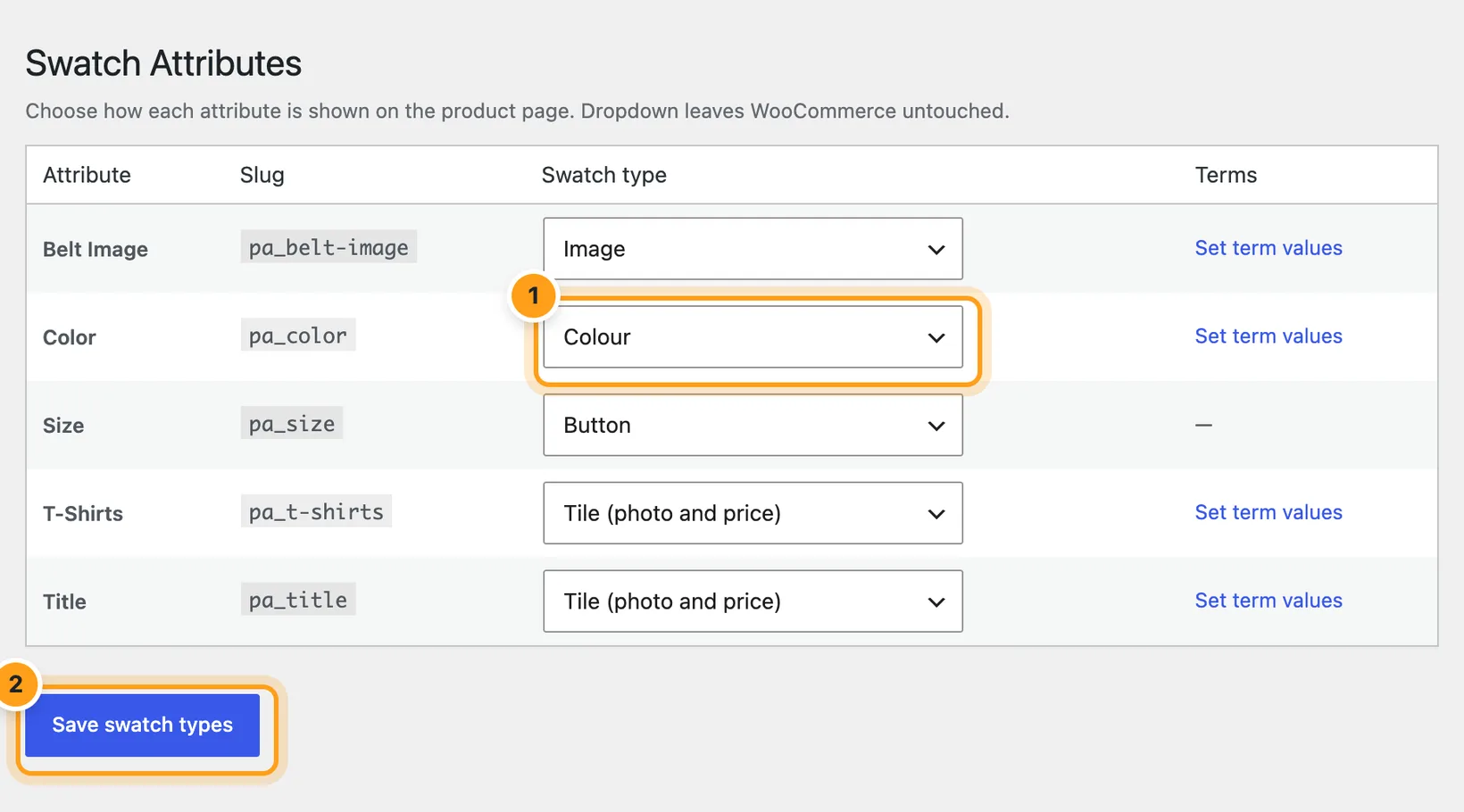
Two places do this, and they save the same value:
- Swatches › Attributes — every attribute in one list; change several and save once. Best when setting up.
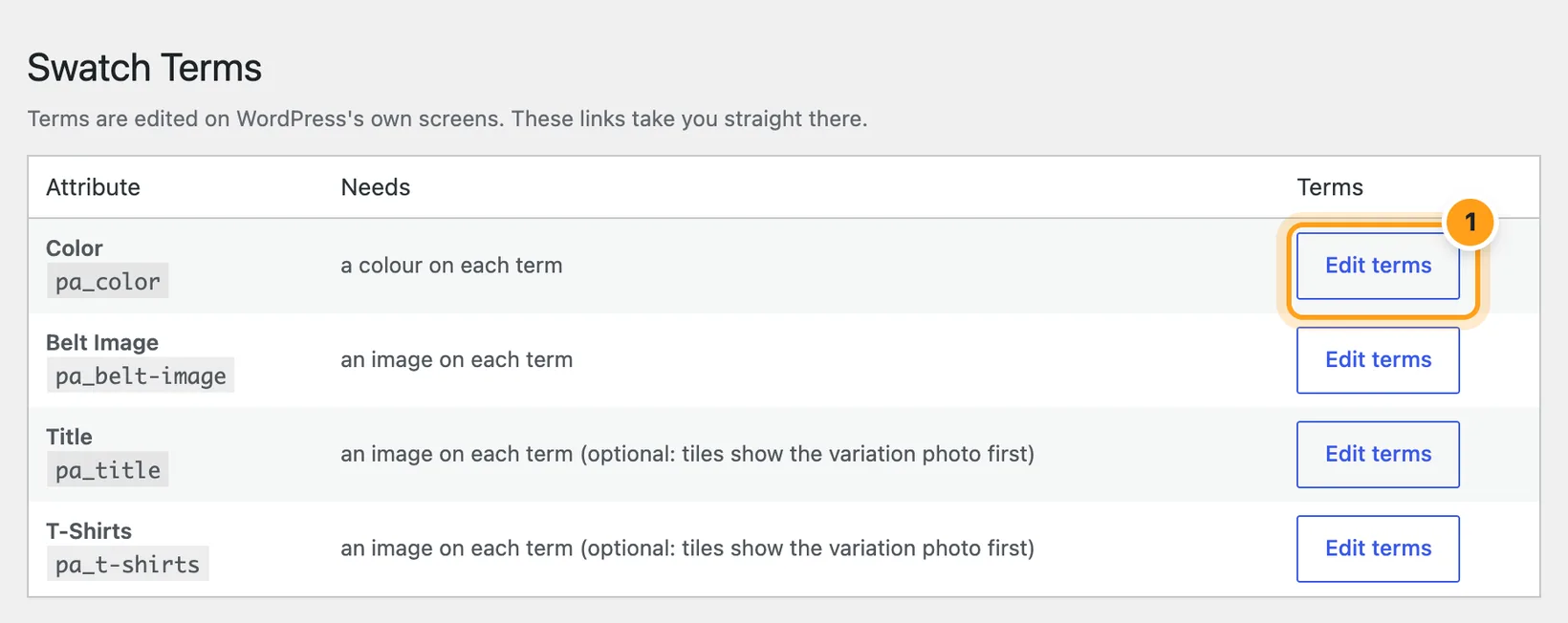
- Products › Attributes — the same control on an attribute’s own form, when you are already creating or editing it.
| Type | Use it for | Needs |
|---|---|---|
| Dropdown | Leaving WooCommerce alone | Nothing |
| Colour | Colours, finishes | A colour on each term |
| Image | Patterns, materials, printed designs | An image per term, or a variation image |
| Tile | Options that change the look and the price: colours of a bag, finishes of a tap | Variation images — see Tile swatches |
| Button | Sizes, volumes, quantities | Nothing — the term name is the swatch |
This covers global attributes — the ones under Products › Attributes. An attribute typed straight into one product is a custom attribute and is set on that product instead: see Custom attributes.
2. Give the terms their colours or images
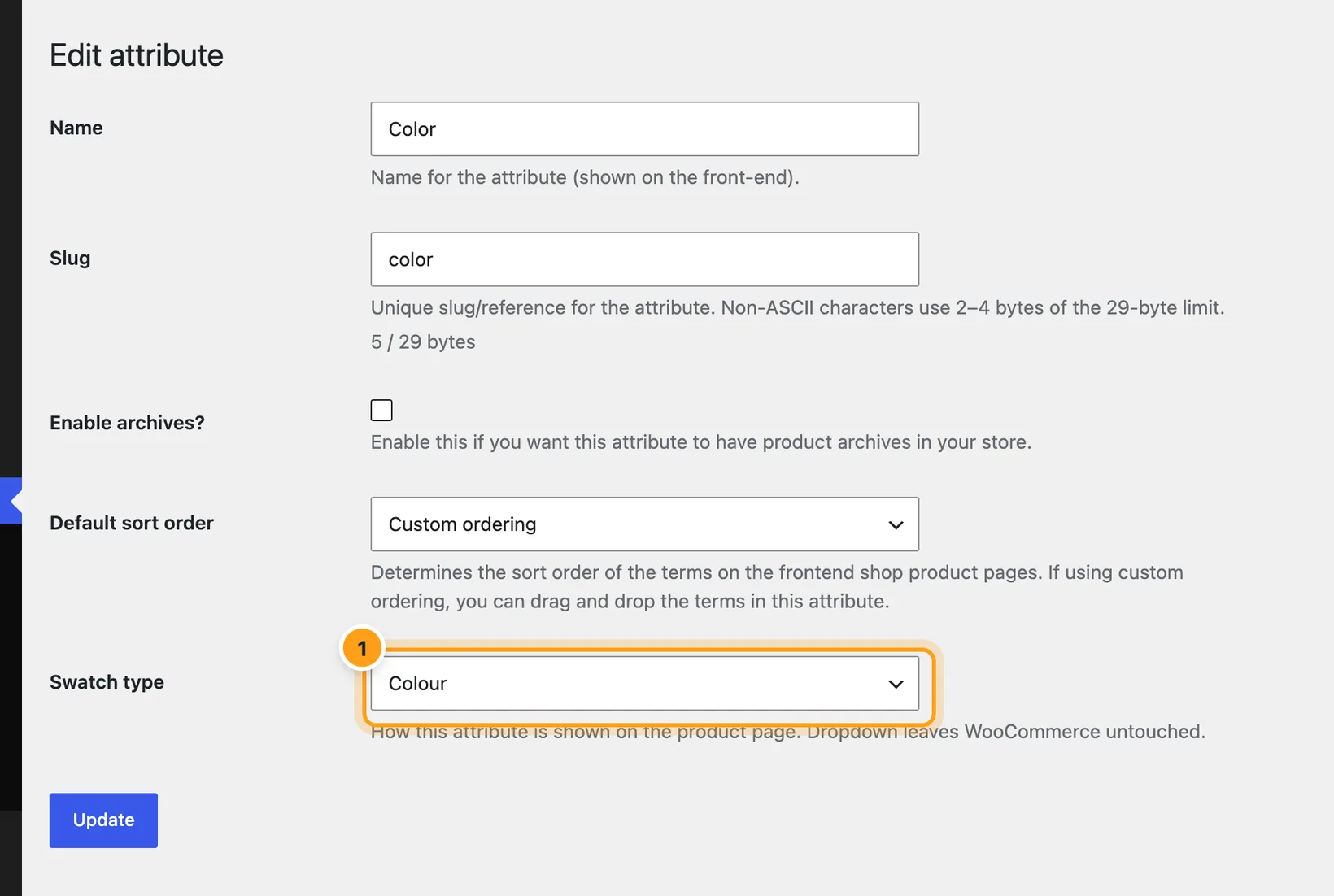
Swatches › Terms lists the attributes that need term values, with a link to each one’s terms; Configure terms under Products › Attributes goes to the same screen. Terms are edited on WordPress’s own screen, so its search, bulk actions and quick edit all work.
- Colour attribute — each term gets a Swatch colour field. Leave it
empty and that term shows as readable text while the others stay colours. Name a term after a
colour (Navy, Tomato, Dark Olive Green) and an empty field fills itself as you type; a colour
name typed into the field itself turns into its hex value. A colour you picked yourself is
never replaced.
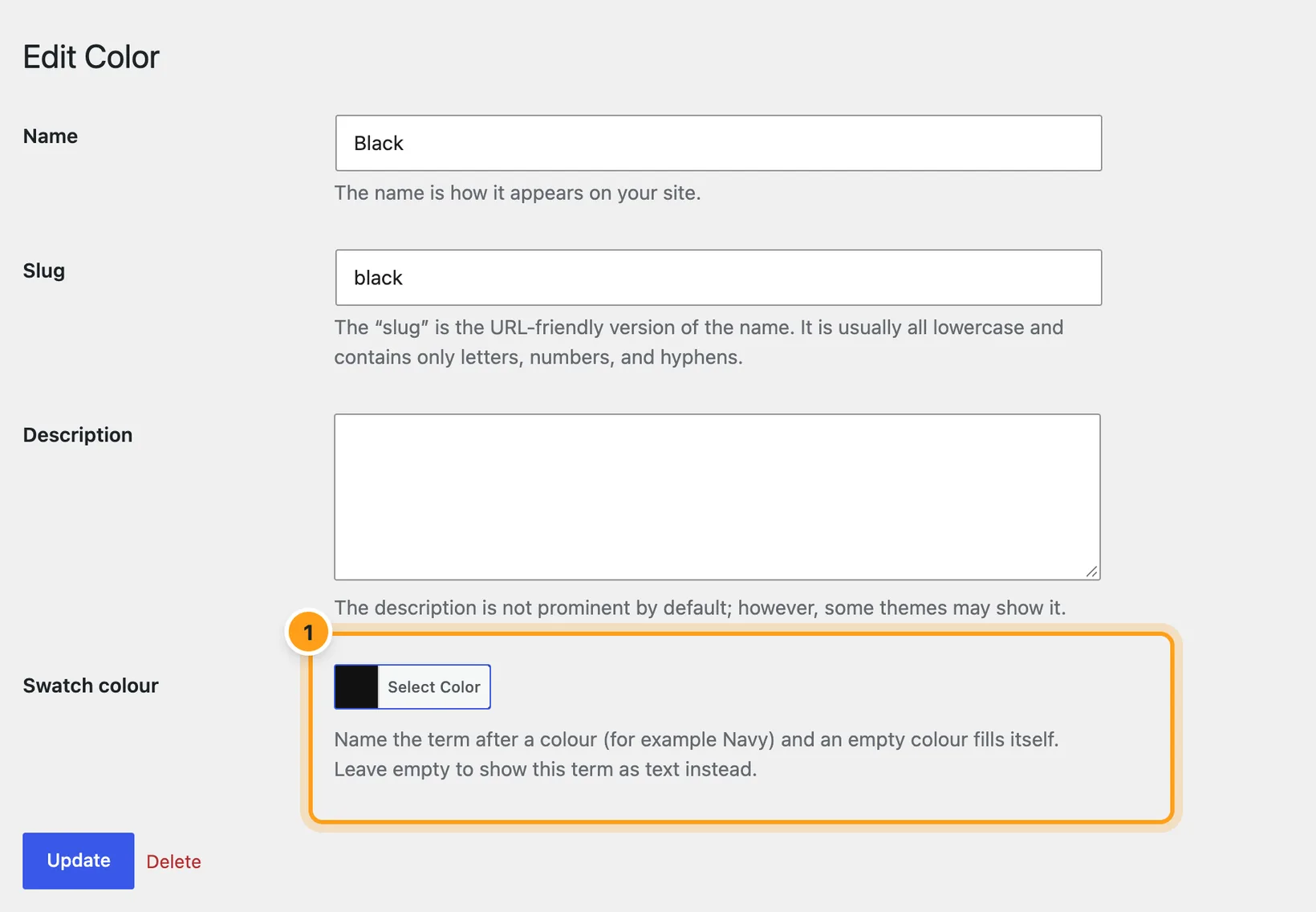
The Swatch colour field on a colour attribute’s term 1. - Image attribute — each term gets a Swatch image from your media
library. Leave it empty and the swatch uses the featured image of a variation with that term.
With neither, the term shows as text.
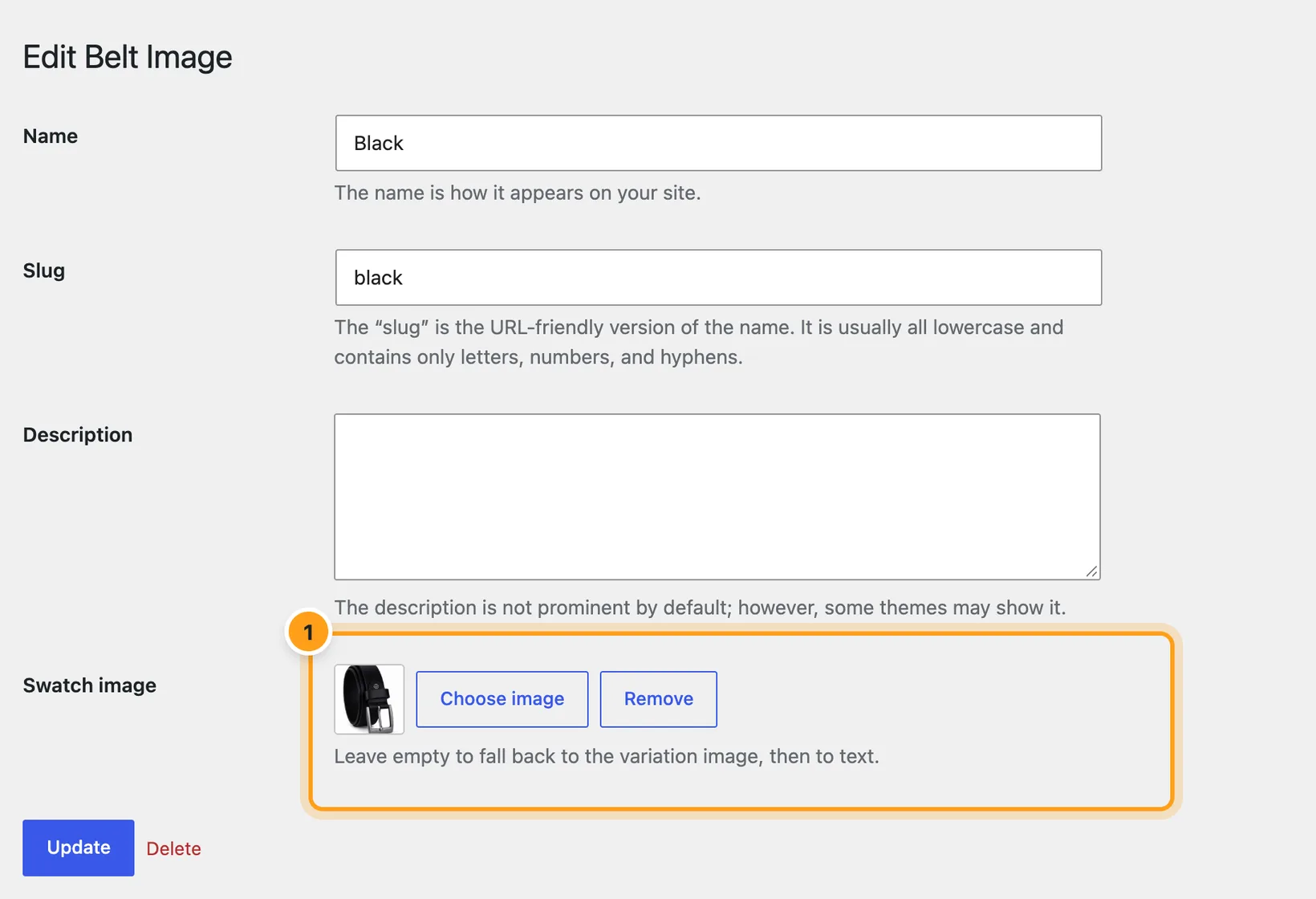
The Swatch image field on an image attribute’s term 1. - Tile attribute — the same Swatch image field, but optional: a tile shows the variation’s own photo first and uses the term image only when no variation has one.
The colour field appears only on colour attributes and the image field only on image and tile ones, so the term screens stay clean everywhere else.
3. Custom attributes made inside a product
An attribute you create inside a product (Add new in its Attributes tab, values
separated by |) has no terms, so it is configured on the product:
- Create the attribute, tick Used for variations, generate the variations and Update the product.
- Open the product’s Swatches tab (variable products only). Each custom attribute used for variations is listed.
- Choose a Swatch type. For Colour, each value gets a colour field, and values named after a colour fill themselves. For Image, each value gets an image.
- Update the product.
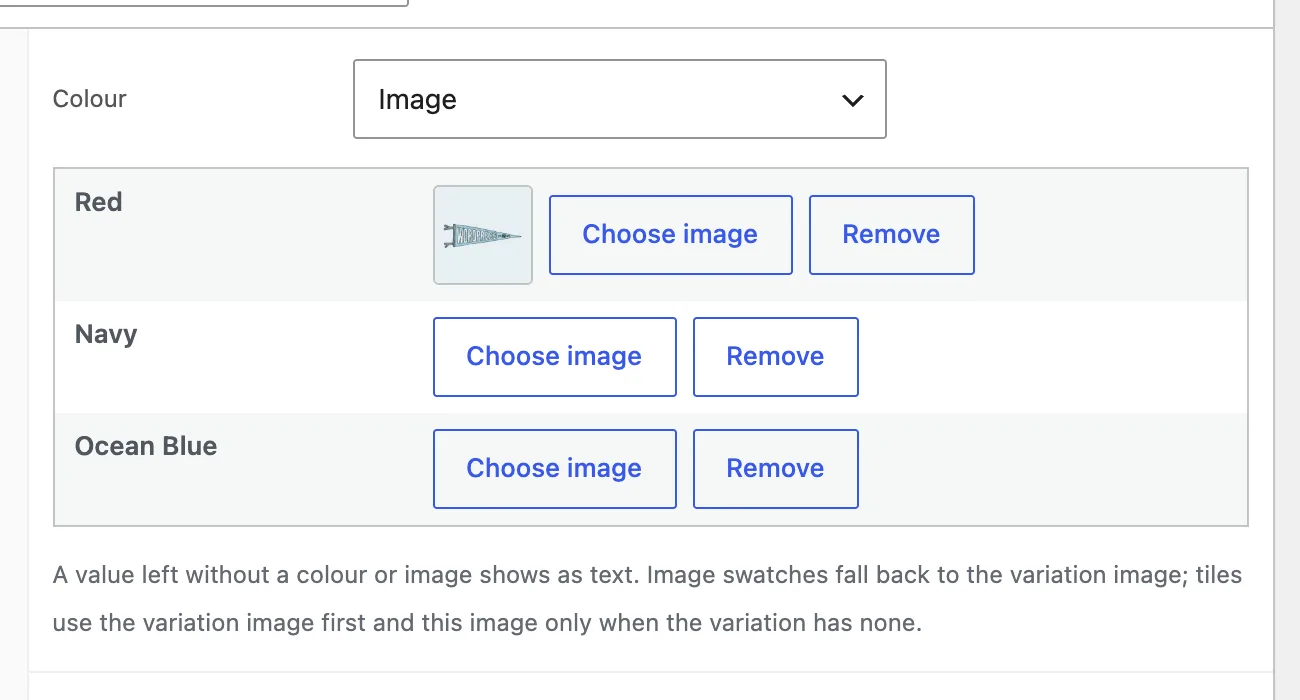
The same fallbacks apply as for terms, and sold-out marking works the same way. The settings belong to that product only: two products with a “Colour” custom attribute are set separately. If you rename a value, its colour or image is dropped on the next update and it shows as text until you set it again.
4. Tile swatches: photo and price
A tile is a larger swatch: the variation’s photo, with its price underneath. Use it on the attribute whose options look different and may cost different amounts, and leave the others (a style, a size) as buttons or a dropdown below it.
- Set the attribute’s type to Tile (photo and price) — on Swatches › Attributes for a global attribute, or in the product’s Swatches tab for a custom one.
- Give the variations their images in the product’s Variations tab. No image per term is needed.
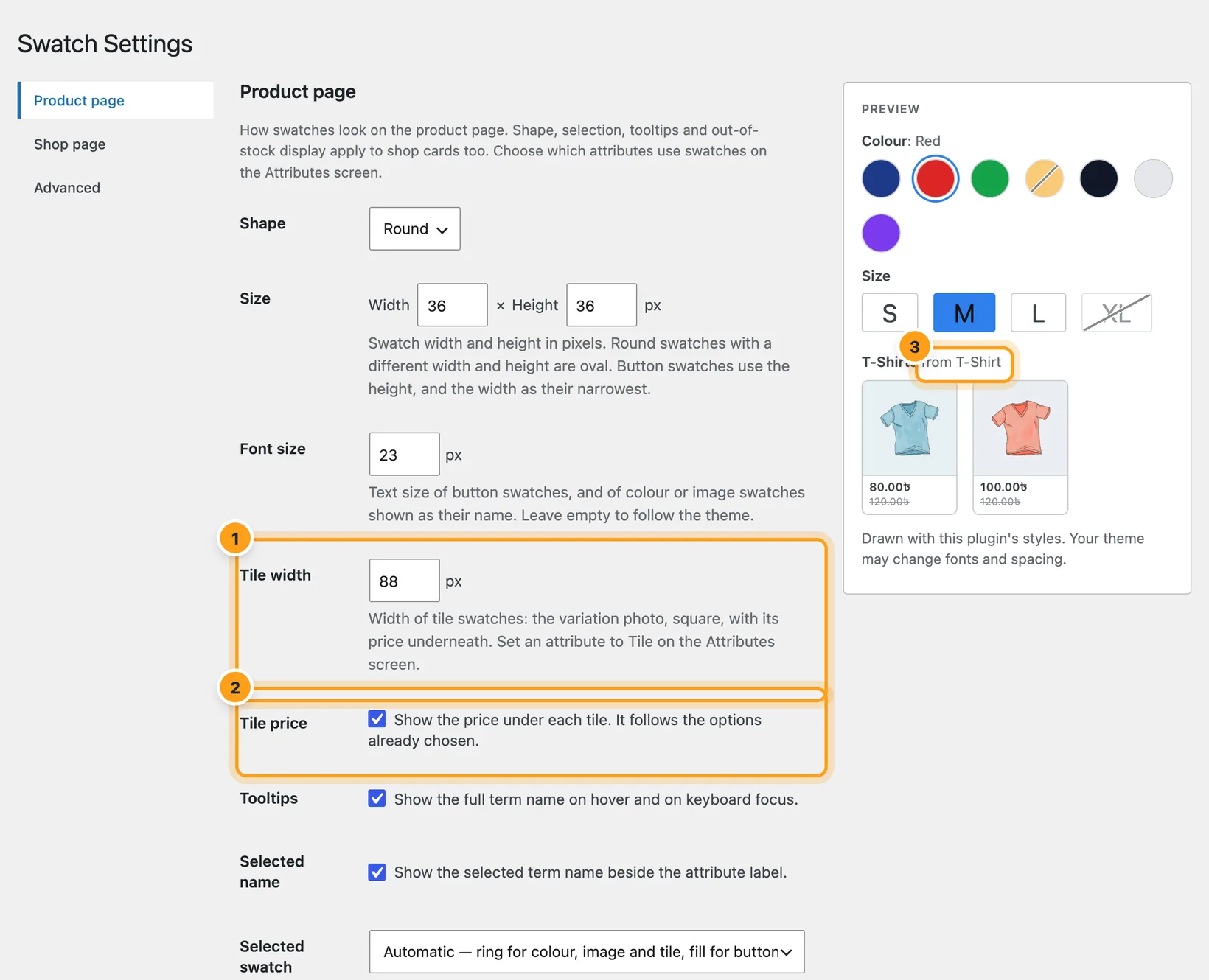
- Optionally, set Tile width and Tile price under Swatches › Settings › Product page.
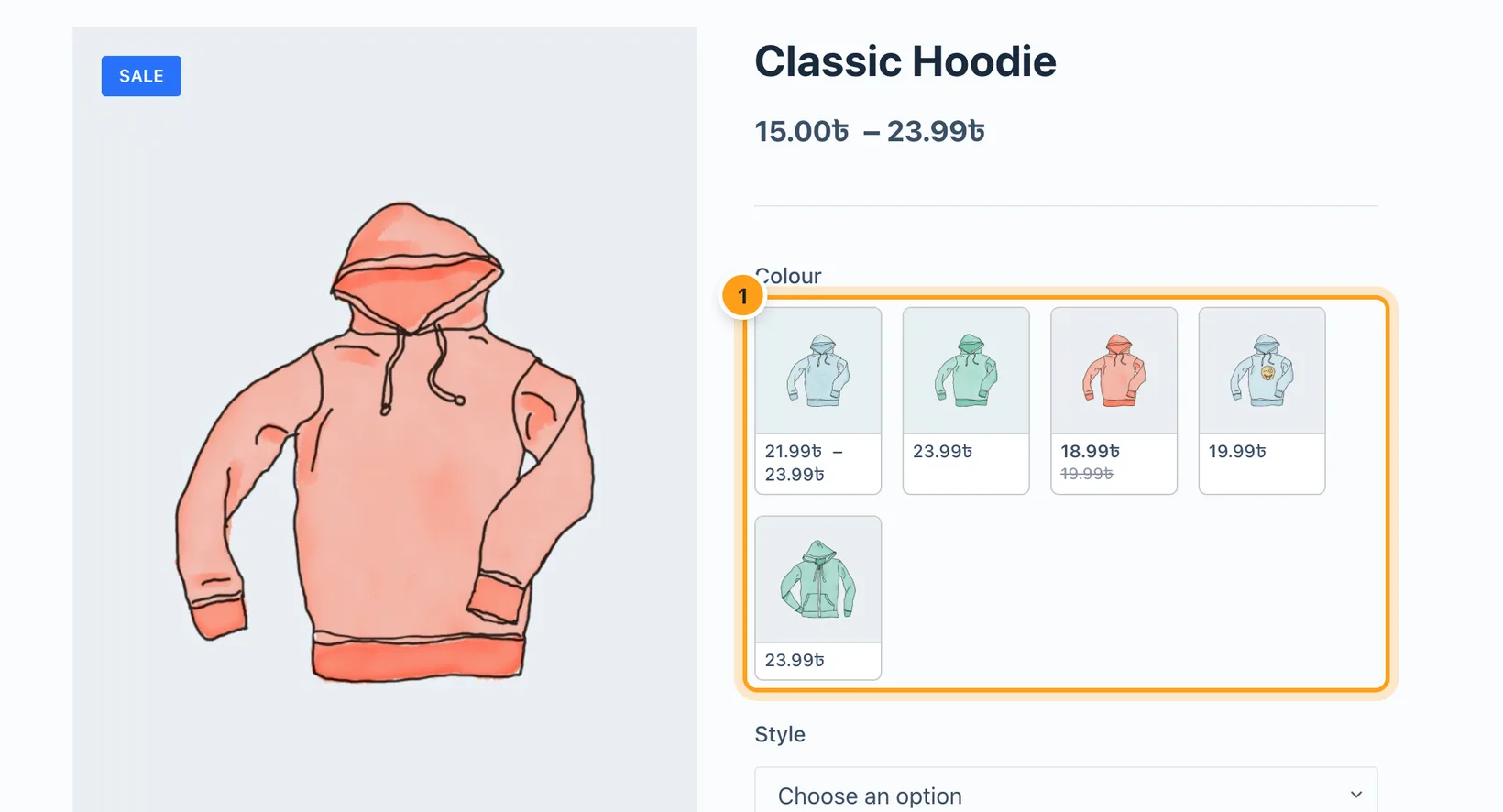
- Photo — the featured image of the first variation with that value. If none has one, the term’s (or custom value’s) image is used, then the name as text.
- Price — the price of the variations with that value that match what is already chosen: one price, or a range (“21.99 – 23.99”) while another option still changes it. Sale prices show the regular price struck through. A sold-out variation’s price is ignored while one in stock matches. Prices are WooCommerce’s own, tax display included.
- Hover — hovering a tile, or tabbing to it with the keyboard, shows its photo in the main product image; moving away puts the previous image back. A chosen tile keeps its photo. On a phone there is no hover: a tap chooses the tile.
- Shop pages — on product cards a tile attribute shows as an image swatch, without the price: cards are too small for a price under every option.
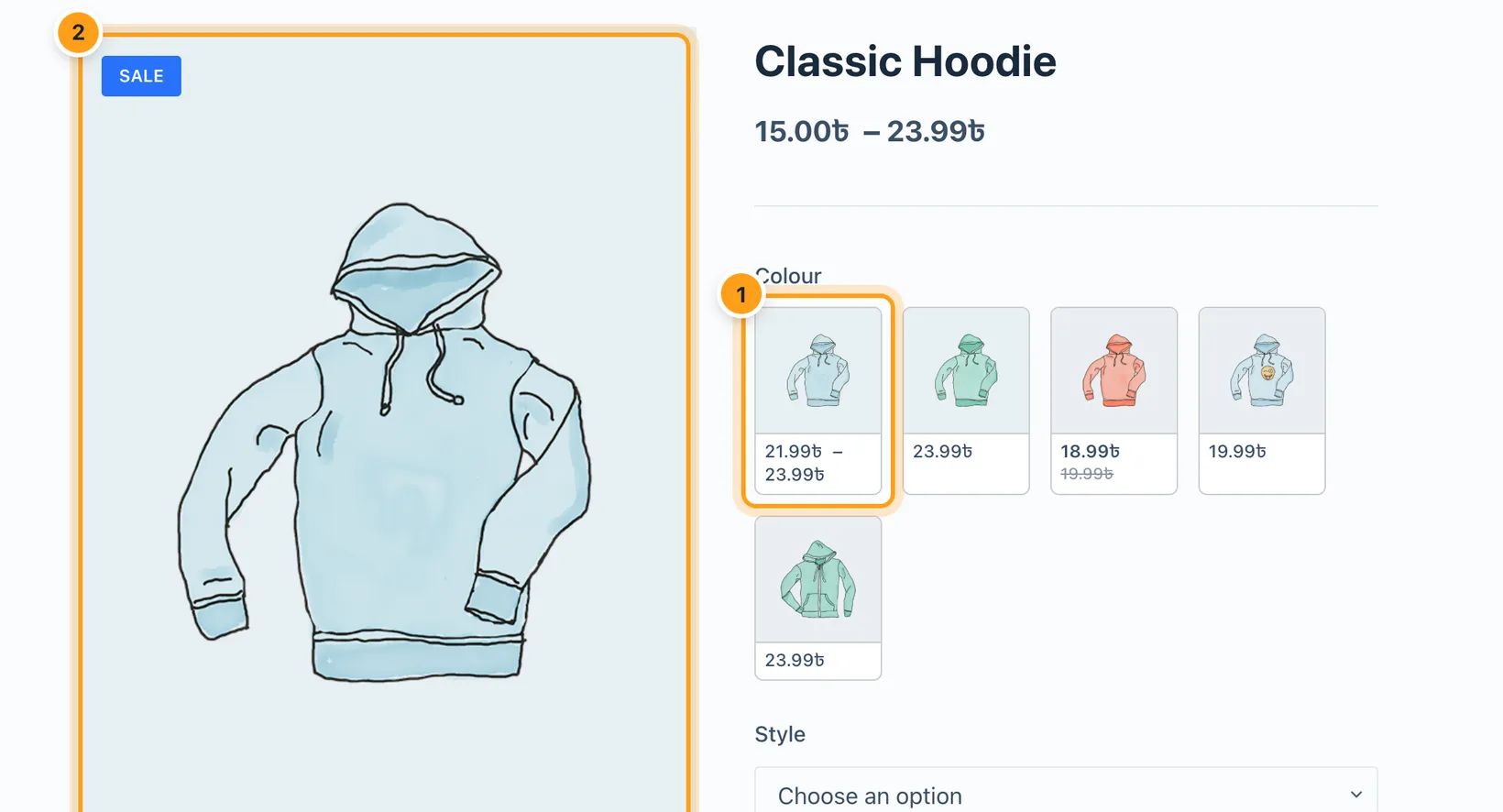
The hover preview goes through WooCommerce’s own variation image functions, which most themes’ galleries (zoom, lightbox, slider) follow. A theme that replaces the gallery with a script of its own that ignores them shows tiles and prices, without the preview.
5. Set how swatches look
Swatches › Settings › Product page. A live preview beside the form updates as you change each setting, before you save.
| Setting | Default | What it does |
|---|---|---|
| Shape | Round | Round or square. |
| Size | 36 × 36 px | Width and height, each 16–120. Round with a different width and height gives an oval. Buttons use the height, and the width as their narrowest. |
| Font size | Theme | Text of button swatches, and of colour or image swatches shown as their name. 10–32 px, or empty to follow the theme. |
| Tile width | 88 px | Width of tile swatches, 48–200. The photo is square at this width, with the price under it. |
| Tile price | On | Shows the price under each tile. |
| Tooltips | On | Shows “Attribute: Term” (e.g. “Colour: Ocean Blue”) instantly on hover and on keyboard focus. |
| Selected name | On | Prints the chosen term beside the attribute label. |
| Out of stock | Cross out | Cross out, blur, or hide. |
| Selected swatch | Automatic | How a chosen swatch is marked — see below. |
| Selection colour | A mid blue | Used by whichever style is in use. |
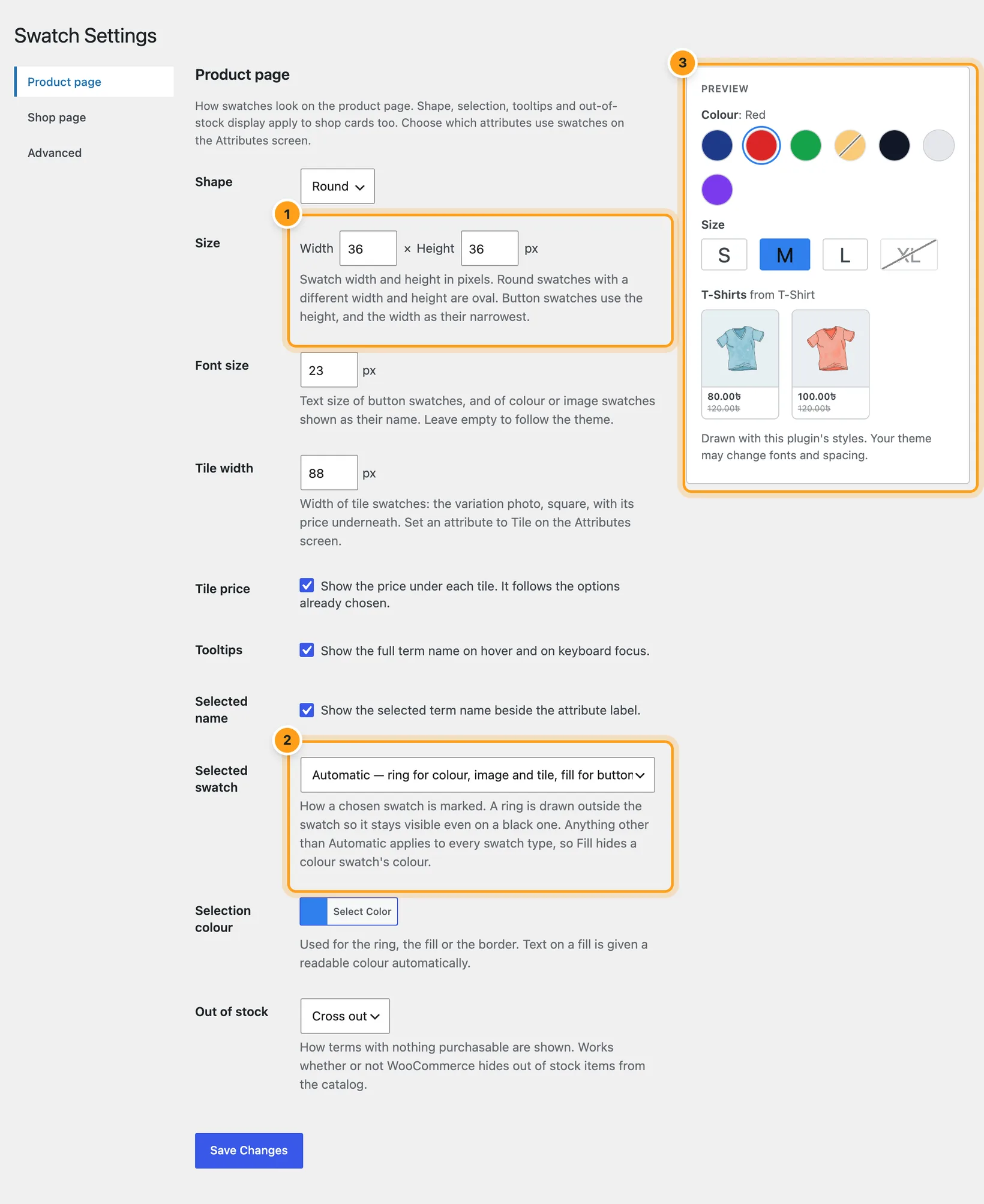
How a selected swatch is marked
Automatic picks the style that suits each type, and is what you want unless you have a reason otherwise:
- Colour and image swatches get a ring drawn outside the swatch. It never touches the swatch, so it stays visible on black and on white.
- Button swatches get a fill: there is no colour to hide, so filling reads strongest.
Choosing Ring, Fill or Border instead applies that one style to every type — worth knowing before you pick Fill, which covers the colour a colour swatch exists to show. The text colour on a fill is worked out from the selection colour so it stays readable, and keyboard focus is drawn as a dashed outline further out than the ring, so a focused swatch always looks different from a selected one.
6. Swatches on shop and category pages
Variable product cards in product grids — the shop, categories, tags, search results,
[products] shortcodes, related products, upsells and cross-sells — show swatches
right before or after the card’s add-to-cart button. Set them in
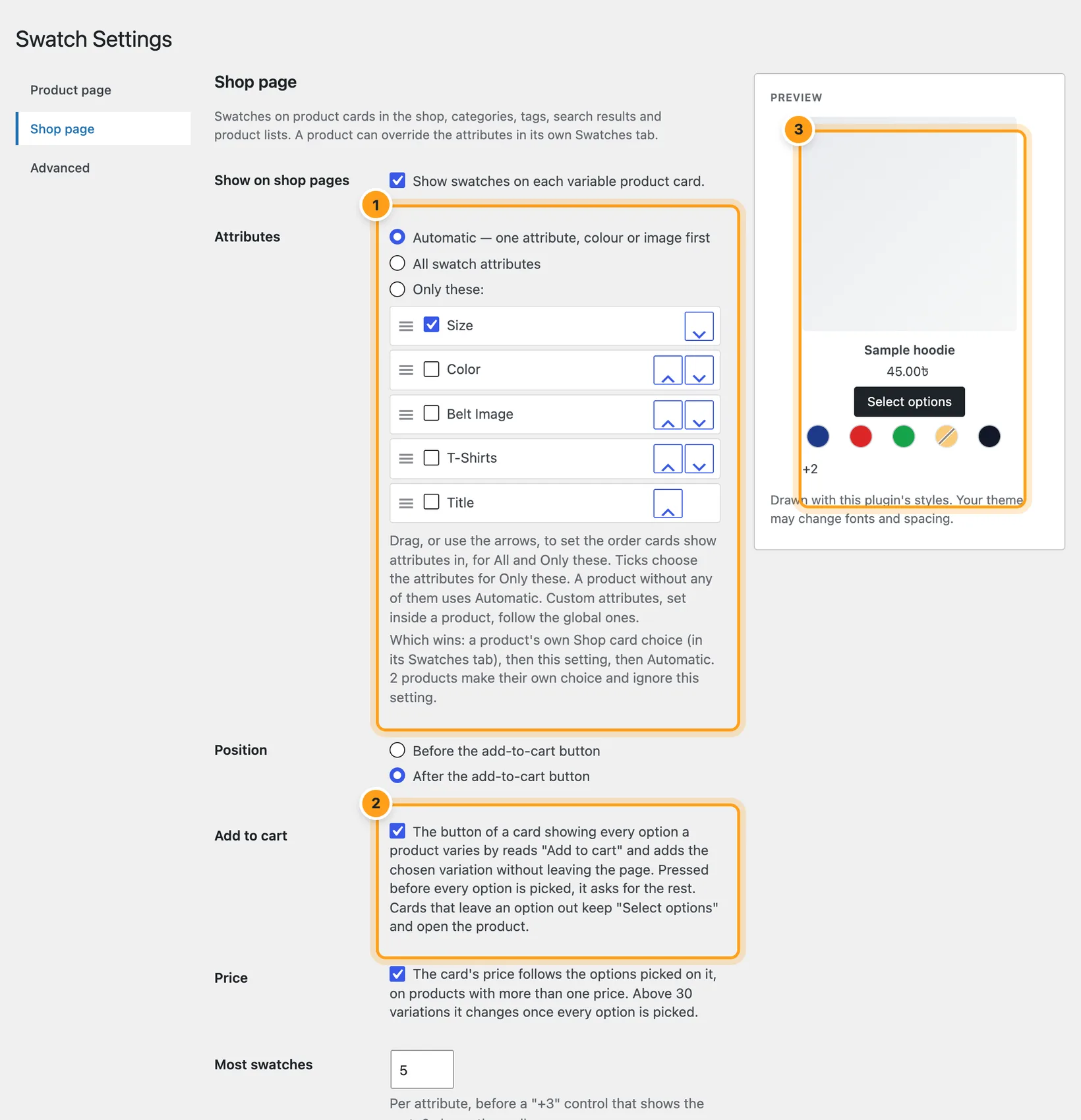
Swatches › Settings › Shop page, where the preview shows a sample
card.
| Setting | Default | What it does |
|---|---|---|
| Show on shop pages | On | Off removes card swatches everywhere. |
| Attributes | Automatic | Automatic: one attribute, the product’s first colour or image one, else its first button one. All swatch attributes: one row each. Only these: the ticked global attributes, where the product has them. Drag the list, or use its arrows, to set the row order. |
| Position | Before the button | Or after the add-to-cart button. |
| Add to cart | On | On cards that show every option a product varies by, the button reads Add to cart and adds the chosen variation without leaving the page. |
| Price | On | The card’s price follows the options picked: one price, or the range still possible. |
| Most swatches | 5 | Per attribute; the rest sit behind a “+3” control that expands the row. 0 shows them all. |
| Size | 24 × 24 px | Card swatches only. However small, each swatch takes taps over at least 24 × 24 px. |
| Font size | Theme | Card swatches only. |
| Swatch spacing | 8 px | Between swatches on a card. With a ring selection they stay far enough apart for the ring. |
| Row spacing | 6 px | Between attribute rows on a card. |
| Alignment | Follow theme | Or left, centre, right. |
Shape, selection style and colour, tooltips and out-of-stock display are shared with the product page.
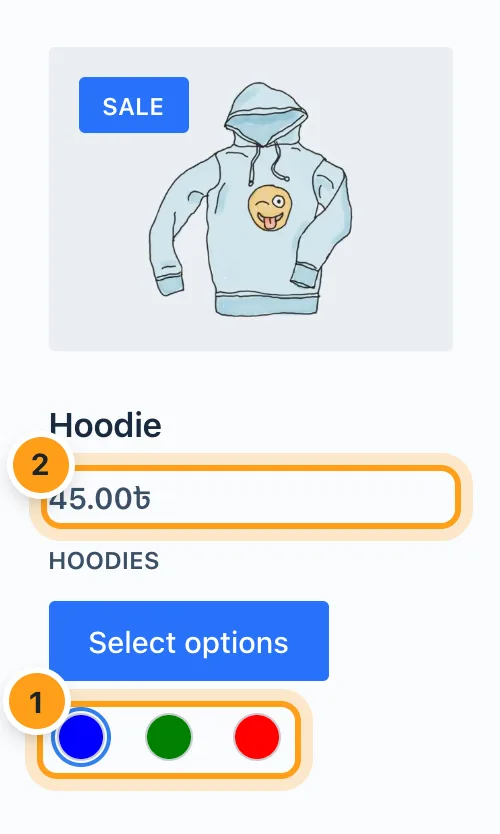
What shoppers can do on a card
- The card image follows the choice: the photo of the first variation matching everything picked so far (reorder variations to change which).
- Every link to the product on the card carries the choice, so the product opens with it selected. Clicking a picked swatch again unpicks it.
- For products with up to 30 variations, options out of stock alongside the current choice are marked, and the price narrows to what the choice can still cost.
- When the card shows every attribute the product varies by, its button reads Add to cart from the start, on products of any size. Pressed before every option is picked, the card outlines the missing rows and says what to choose (“Choose a Size”). With everything picked it adds the variation through WooCommerce’s own add to cart, so your mini cart updates as usual.
- Cards that leave an attribute out keep Select options, which opens the product with the choice made. To give such cards an add-to-cart button, choose All swatch attributes.
7. A different card for one product
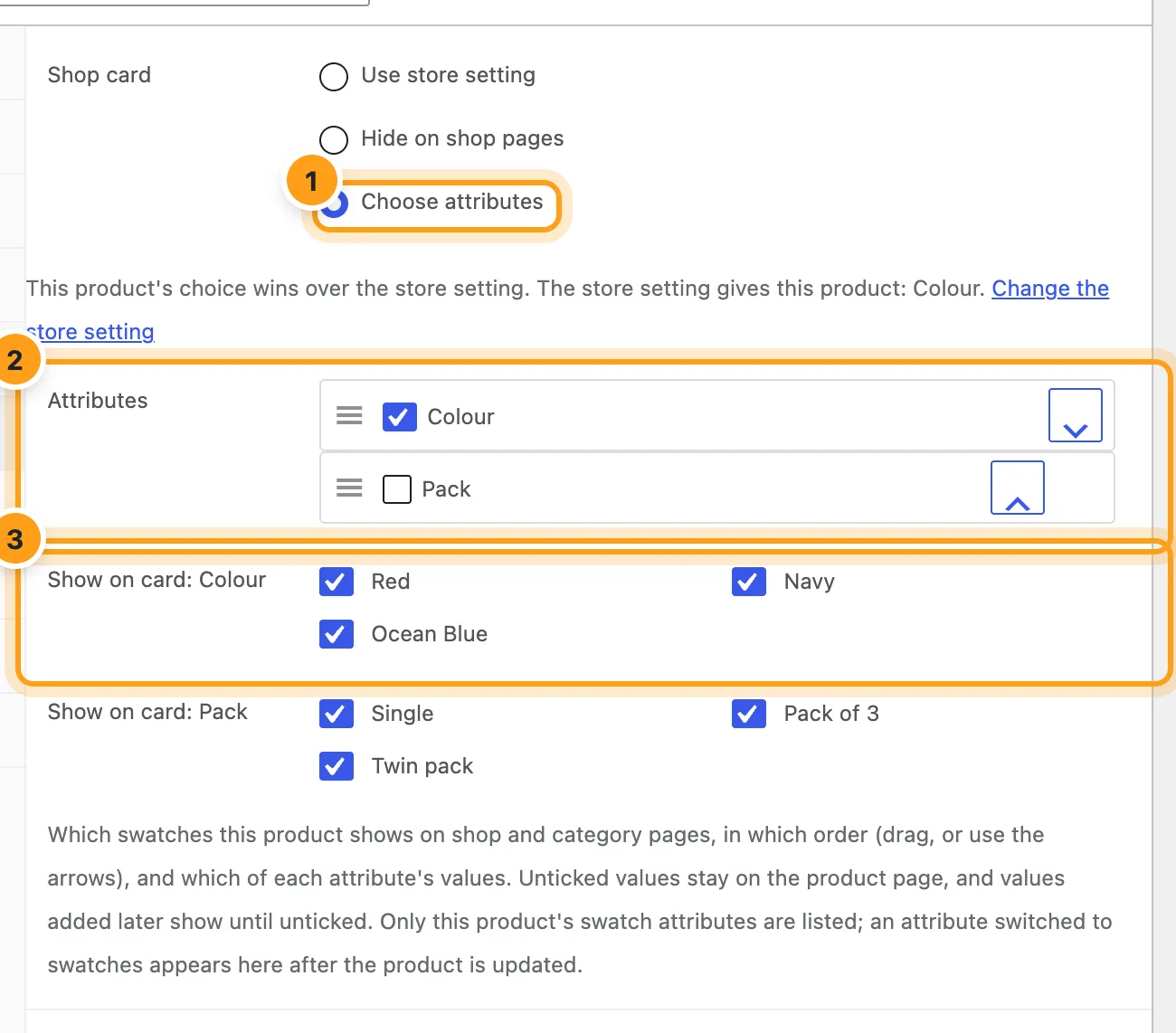
The product’s Swatches tab has a Shop card choice: Use store setting, Hide on shop pages, or Choose attributes with any of that product’s swatch attributes, global or custom, in the order its card shows them.
The product’s choice wins: product choice, then the store setting, then Automatic. The settings screen says how many products make their own choice, and a product’s tab shows what the store setting would give it, so Use store setting is not a guess.
Below it, Show on card chooses which values the card shows. Untick the ones to leave off — they stay on the product page and can still be bought there. Untick every value of an attribute and its row disappears from the card.
8. Out of stock
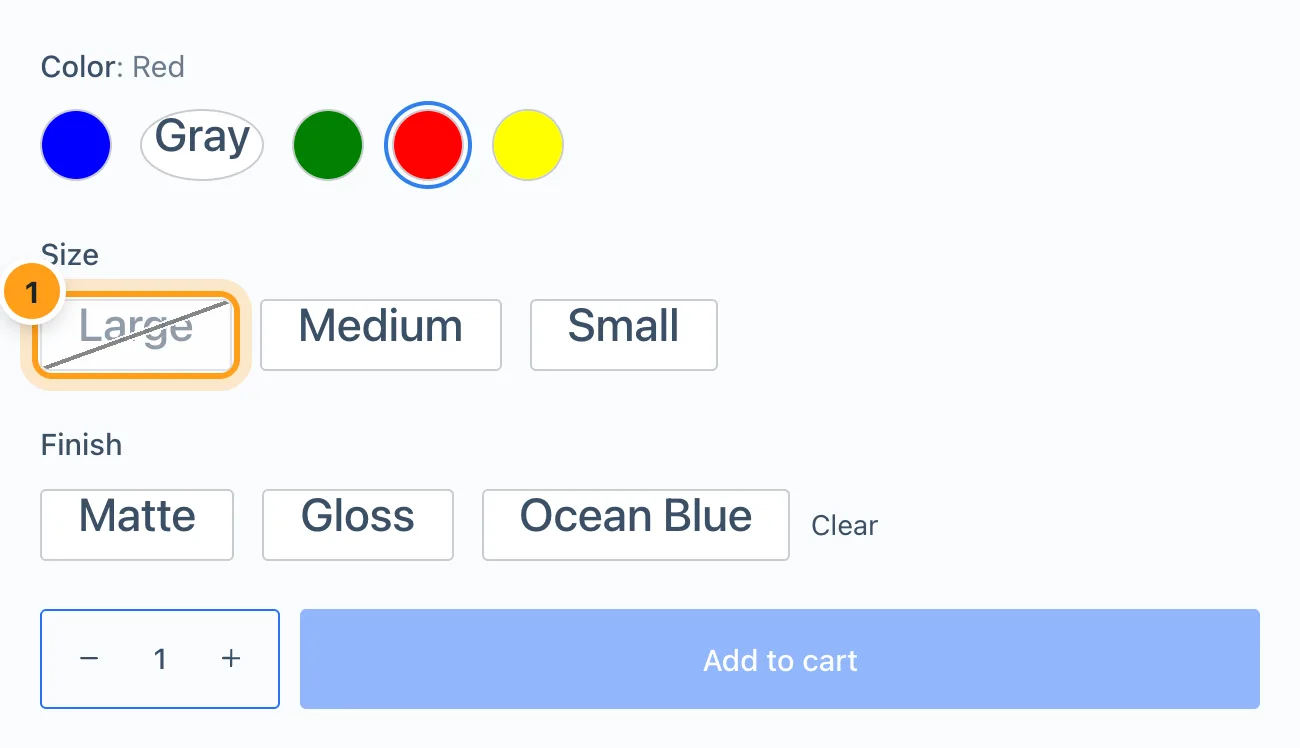
An option is marked unavailable when nothing purchasable matches it, taking into account what the shopper has already chosen. A variation on backorder counts as purchasable, because it can be bought. Choose how unavailable options look under Out of stock: crossed out, blurred, or hidden.
- It works however many variations a product has, including past WooCommerce’s 30-variation threshold.
- It does not depend on WooCommerce’s “Hide out of stock items from the catalog” setting. Leave that off if you want sold-out products to stay browsable.
9. For developers and unusual themes
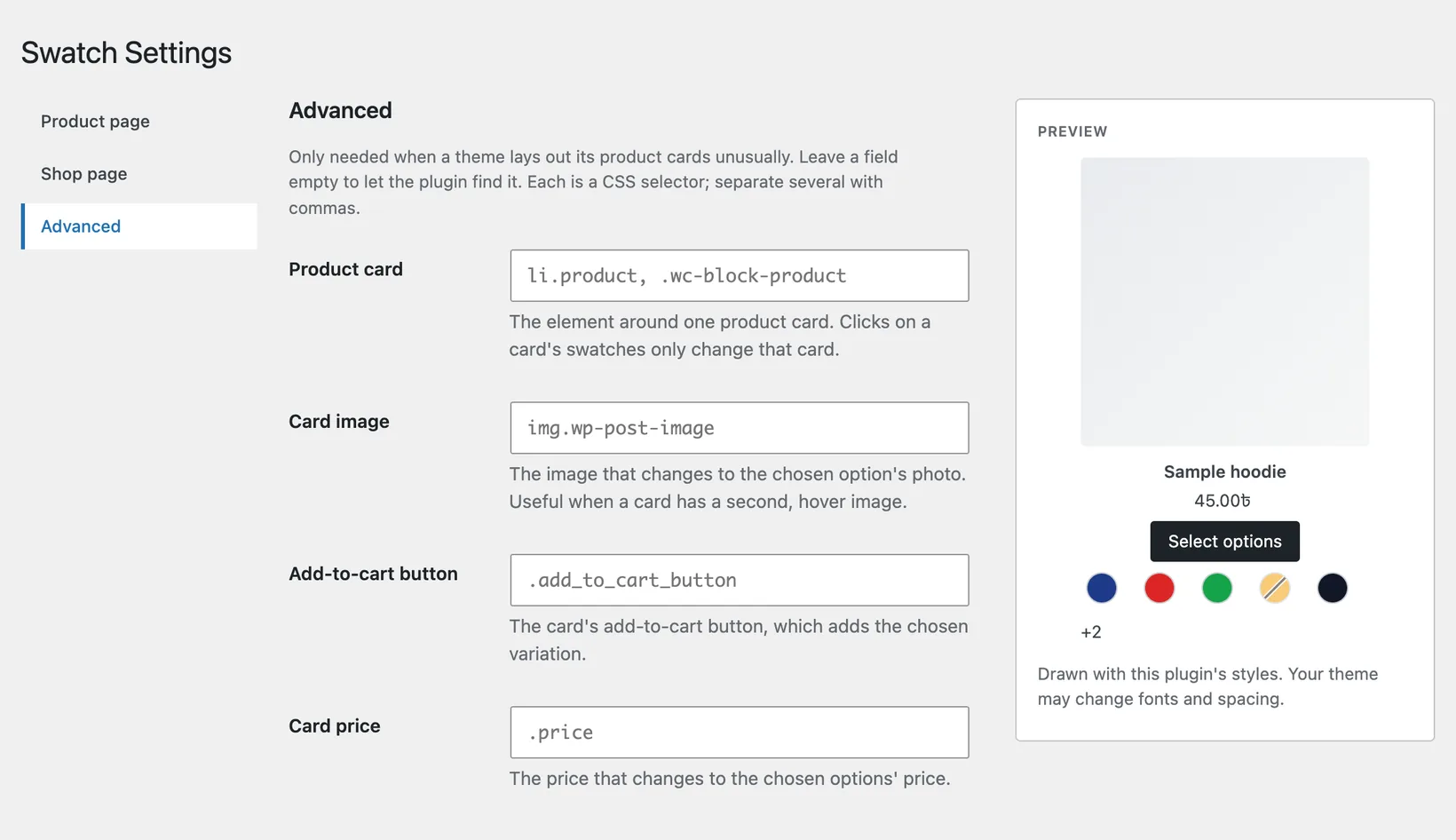
Swatches › Settings › Advanced is only for themes that lay out cards unusually. Each field is a CSS selector; leave it empty to let the plugin find it.
| Field | Finds | Built in |
|---|---|---|
| Product card | The element around one card | li.product, .wc-block-product, .product, .type-product |
| Card image | The image that changes with the choice | The first image on the card |
| Add-to-cart button | The card’s add-to-cart button | .add_to_cart_button, .wp-block-button__link, .button |
| Card price | The price that follows the choice | .price |
Filters
// Cards that print no standard add-to-cart button get the swatches here instead.
add_filter( 'kabaa_swatches_card_hook', fn () => array(
    'hook'     => 'woocommerce_after_shop_loop_item',
    'priority' => 20,
) );

// The card image selector, after the Advanced setting.
add_filter( 'kabaa_swatches_card_image_selector', fn () => 'img.wp-post-image' );

// The card price selector, after the Advanced setting.
add_filter( 'kabaa_swatches_card_price_selector', fn () => '.product-card__price' );
Card swatch size on phones
Card swatches keep a 24 px touch area whatever their size, and rows wrap. A theme that wants a different size on phones can set the size variables itself:
@media (max-width: 480px) {
  .kabaa-swatches--card {
    --kabaa-swatch-width: 20px;
    --kabaa-swatch-height: 20px;
  }
}
10. Status, turning off, removing
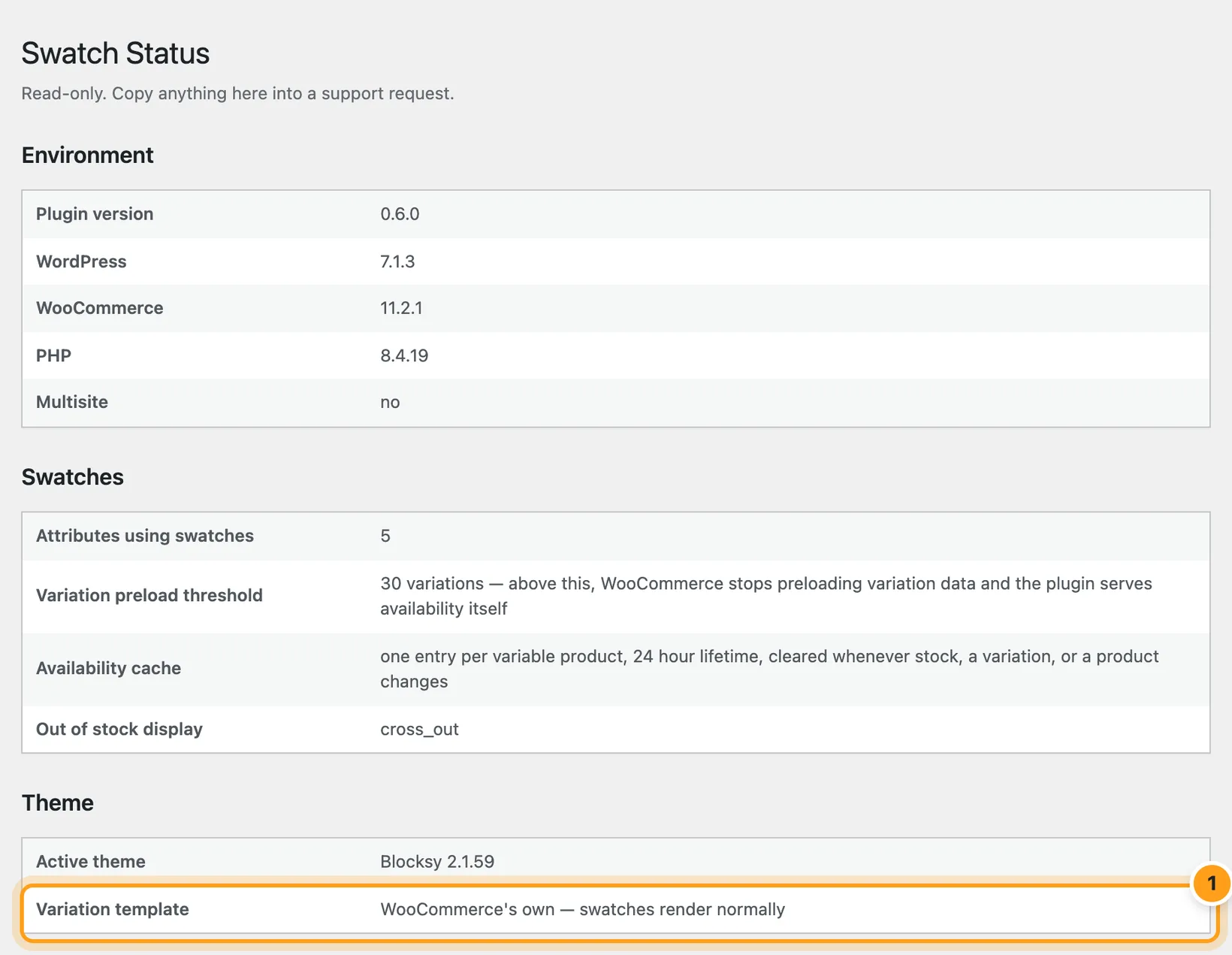
Swatches › Status reports what a support request needs: WordPress, WooCommerce and PHP versions, the active theme, whether it overrides WooCommerce’s variable product template, the variation threshold, and how the availability cache behaves. It is read-only. If swatches are not appearing, the theme row is the first thing to read.
- Set an attribute back to Dropdown and it shows WooCommerce’s plain select. Its colours and images stay stored, so switching back restores them.
- Deactivating restores dropdowns everywhere and keeps all configuration for when you reactivate.
- Deleting removes only what the plugin created: its settings, the colours and images on terms, and the swatch settings saved on products. Attributes, terms, products, variations and every image in your media library are untouched.
Troubleshooting
I set a type but still see a dropdown.
Either the attribute is a custom one that has not been given a type in the product’s Swatches tab, or your theme renders its own variation form without calling WooCommerce’s dropdown function. In the second case the plugin steps aside on purpose so the product stays buyable — Swatches › Status shows whether your theme overrides the template.
Colours are not showing.
Check the attribute’s type is Colour and its terms have colour values. A term with no colour shows as text by design.
Swatches show on the product page but not on shop cards.
Check Show on shop pages is on, and that the product’s own Swatches tab is not set to
Hide on shop pages. If your theme lays out cards unusually, name the card, its image,
button or price under Swatches › Settings › Advanced; a theme whose
cards print no add-to-cart button at all needs the kabaa_swatches_card_hook filter.
The card says “Select options” instead of “Add to cart”.
The card shows add to cart only when it shows every attribute the product varies by. Set the shop page attributes to All swatch attributes.
Still stuck? Ask in the support forum on WordPress.org ↗ and include what Swatches › Status reports.