Short answer
Add each option to the product’s address as attribute_pa_ + the attribute slug,
set to the option’s slug:
/product/hoodie/?attribute_pa_color=navy&attribute_pa_size=medium
WooCommerce opens the product with Navy and Medium already chosen. It works on any store,
with no plugin. Add utm_ tags to the same link for your campaign.
Why it matters on Black Friday
An email or ad for a variable product nearly always shows one variation: the navy one, in the photo, at the sale price. The shopper clicks because of that photo. If the page opens on the default colour, they have to find navy again, choose a size, and hope the price they saw is still the price on screen.
Some do, and some don’t. On an ordinary day that is a small loss. On the day you send three emails and pay the most for ads, it is a small loss times all of your traffic. A link that opens on the variation from the email removes the step entirely.
Email is where Black Friday revenue comes from, and the click lands on a phone, where finding the colour again means scrolling past the photos and tapping through small swatches. Every link in the email is the last thing between a click you already paid for and an add to cart.
The link format
When WooCommerce draws each variation dropdown, it checks the address for an argument named after that attribute. If one is there, it chooses that option instead of the product’s default:
// woocommerce/includes/wc-template-functions.php
$selected_key = 'attribute_' . sanitize_title( $args['attribute'] );
$args['selected'] = isset( $_REQUEST[ $selected_key ] ) ? ...
WooCommerce uses this format itself
This isn’t a trick that might break in the next update. It’s how WooCommerce links to variations
in its own pages. When WooCommerce’s cart page shows “Hoodie – Navy, Medium”, the product name links
back to the product with those options chosen, and WooCommerce builds that link in the variation’s own
get_permalink():
// woocommerce/includes/class-wc-product-variation.php
public function get_permalink( $item_object = null ) {
	$url = get_permalink( $this->get_parent_id() );
	// ...adds each chosen attribute to $url as attribute_*=value
The same method has been documented by Metorik, the WooCommerce analytics service, since 2019, and developers have been pointing to it on Stack Overflow since 2015. Click a product name in your own cart and you’ll see the link in the address bar.
So a link is the product address, a ?, then one name=value per attribute, joined with &:
| You want | Link |
|---|---|
| Navy, any size | /product/hoodie/?attribute_pa_color=navy |
| Navy, Medium | /product/hoodie/?attribute_pa_color=navy&attribute_pa_size=medium |
| A custom attribute | /product/hoodie/?attribute_gift-wrap=yes |
Leave an attribute out and the shopper picks it. Linking to the colour only is often the better choice for an email: the shopper still picks their own size, and you don’t send someone who wears Large to a page set to Medium.
Find the attribute name and value
Global attributes (Products › Attributes)
Go to Products › Attributes. The Slug column gives
the attribute’s slug: color becomes attribute_pa_color. Click
Configure terms for the values: each term has its own slug, such as navy
or navy-blue. Use the slug, not the name, and the link always matches.
Custom attributes (made inside the product)
For an attribute created on the product’s own Attributes tab, there
is no pa_. The name is the attribute name in lowercase, with spaces as hyphens:
“Gift Wrap” is attribute_gift-wrap. The value is the option as you typed it, in
the same lowercase-hyphen form: “Yes, please” becomes yes-please.
The quick way: read it off the page
Open the product, right-click a variation dropdown and choose Inspect. The dropdown’s
name is the argument name, such as attribute_pa_color, and each
option’s value is what goes after the =. With a swatch plugin the
dropdown is usually still in the page, just hidden. Or use the builder below, with the slugs from
your attribute screens.
Build a link
Paste the product address, add the options and the campaign tags, and copy the result. Nothing you type leaves this page.
Links that add to cart
For a “Buy now” button, a link can add the variation to the cart directly. Use the variation’s own ID, shown at the top of each variation under Product data › Variations:
/cart/?add-to-cart=123&quantity=1-
If the variation was set up with “Any” for an attribute (any size, for
example), add that attribute to the link as well, or WooCommerce can’t add it:
/cart/?add-to-cart=123&attribute_pa_size=medium. - Use it for single-item offers. For most emails, a link that opens the product on the right colour sells better, because the shopper still sees photos, price and sizes before committing.
- Some email security scanners open every link in an email before the reader does. That adds items to a cart nobody sees, which is harmless, but it can inflate “added to cart” numbers in your analytics for that campaign.
Check it before you send
- Open the link in a private window, so nothing from your own session chooses options for you.
- Confirm the photo, the price and the sale badge are the ones in the email.
- Send yourself the real email and click the button in it, not the link you pasted. That catches email tools that rewrite links.
- If you use a page cache, check its settings for query strings. Many serve a link with unknown arguments uncached, which is fine for an email’s traffic; a few strip them, which would drop the chosen options.
- Don’t rename the colour or change its slug after the email goes out. A link with a slug that no longer exists opens the product on its default, without an error, so nobody tells you.
Copy links from the page instead
Building links by hand is fine for one email. For a sale with twenty products, or for a support team sending customers to one variation, it is easier when the page writes the link itself.
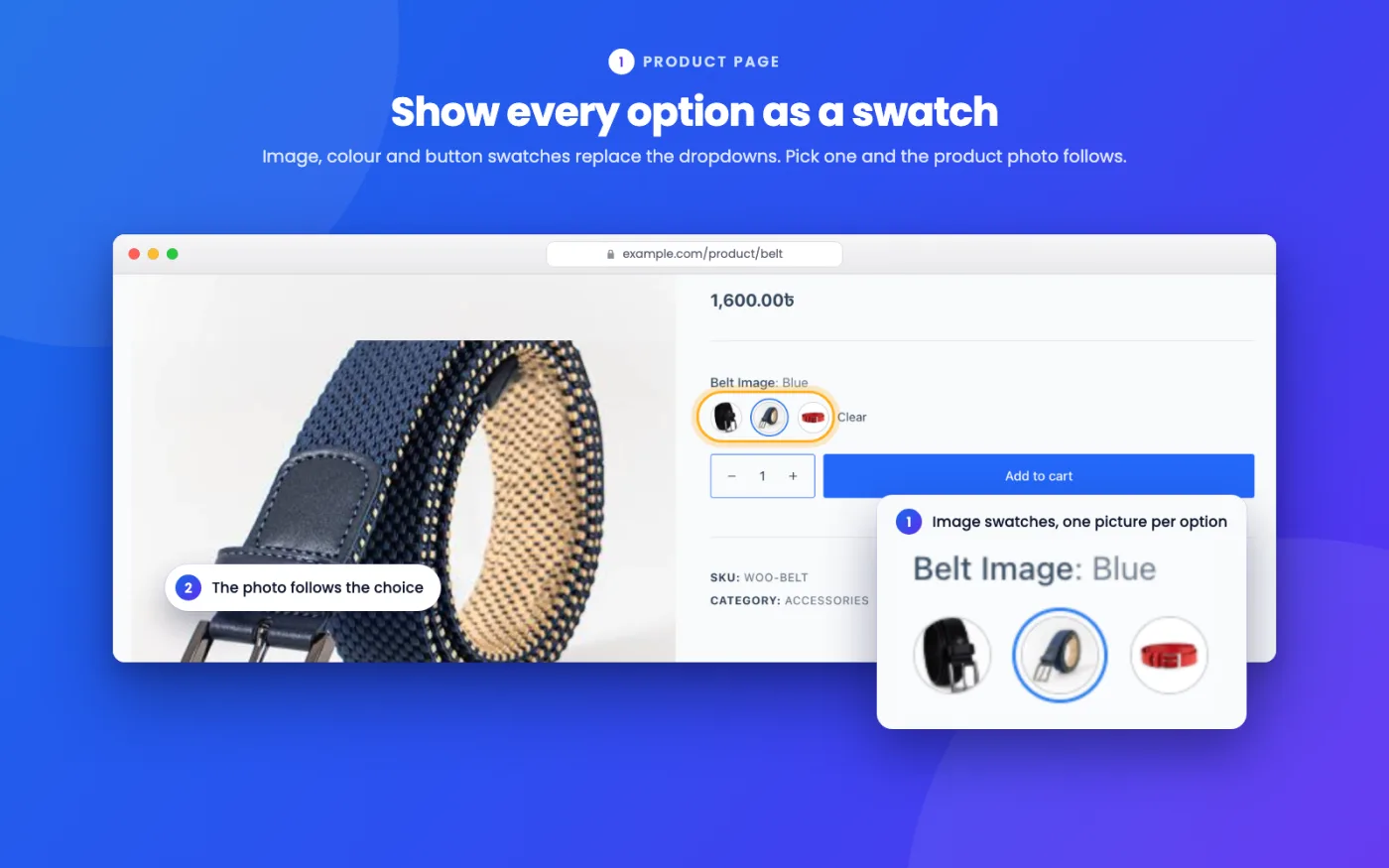
KABAA Swatches is free on WordPress.org, and I build it. It replaces the dropdowns with colour, photo and button swatches, and for links:
- The address follows the choice. Pick Navy and Medium and the address becomes the link above, so you copy it from the address bar. Choosing only the colour gives a colour-only link.
- Campaign tags are kept. Anything already in the address stays in it.
- No extra history. The Back button still leaves the product, and no request or database query is added.
- An optional Copy link button under the options, off until you switch it on.
- Shop cards link to the choice. Pick a colour on a shop card and its link opens the product on that colour.
Shareable links are on as soon as the swatches are, and one button on the welcome screen turns every dropdown into swatches. Free, and three weeks before Black Friday is a good time to try it.
Frequently asked questions
How do I link to a specific variation in WooCommerce?
Add the options to the product address as query arguments: /product/hoodie/?attribute_pa_color=navy&attribute_pa_size=medium. For a global attribute the name is attribute_pa_ followed by the attribute slug, and the value is the term slug. WooCommerce opens the product with those options chosen. No plugin is needed.
How do I preselect a variation from the URL in WooCommerce?
WooCommerce reads any attribute_ argument in the address and uses it as the chosen option for that attribute, instead of the product’s default. Add one argument per attribute you want chosen. Leaving one out leaves that attribute for the shopper to pick.
What is the attribute name for a custom product attribute?
For an attribute created inside the product rather than under Products › Attributes, the name is attribute_ followed by the attribute’s name in lowercase with spaces turned into hyphens, with no pa_. “Gift Wrap” becomes attribute_gift-wrap. The value can be the option exactly as written, encoded, or in the same lowercase-hyphen form.
Can I add UTM tags to a WooCommerce variation link?
Yes. Add utm_source, utm_medium and utm_campaign to the same address, joined with &. The order of the arguments does not matter, and WooCommerce ignores the ones it does not use.
How do I make a link that adds a variation to the cart?
Use ?add-to-cart= followed by the variation’s ID, for example /?add-to-cart=123. The variation ID is shown on each variation under Product data › Variations. If the variation was set up with “Any” for an attribute, add that attribute to the link too, or WooCommerce cannot add it.
Does the variation link work on products with more than 30 variations?
Yes. The options are chosen when the page is built, whatever the variation count. Above 30 variations WooCommerce looks the variation up as soon as every option is chosen, so a link with every option set shows its price and photo after a moment.
Is there a free plugin that makes shareable variation links?
KABAA Swatches is free on WordPress.org. As a shopper picks options, the page address updates to include them, so a link copied from the address bar opens on that variation. Campaign tags already in the address are kept, and an optional Copy link button copies it from the page.